How to Add Name & Date to a Passport-Style Photo
By Shrikant Yadav • Passport-photo preparation guide • Editorial review: September 2026
If your application explicitly asks for a name, date, or caption below a passport-style photo, upload the portrait to PhotocopyWale and open the "Name & Date" controls. Enter the text and date exactly as the application specifies, review the strip placement, then export and re-check the final dimensions, format and file size. Do not add a caption when the application does not request one.
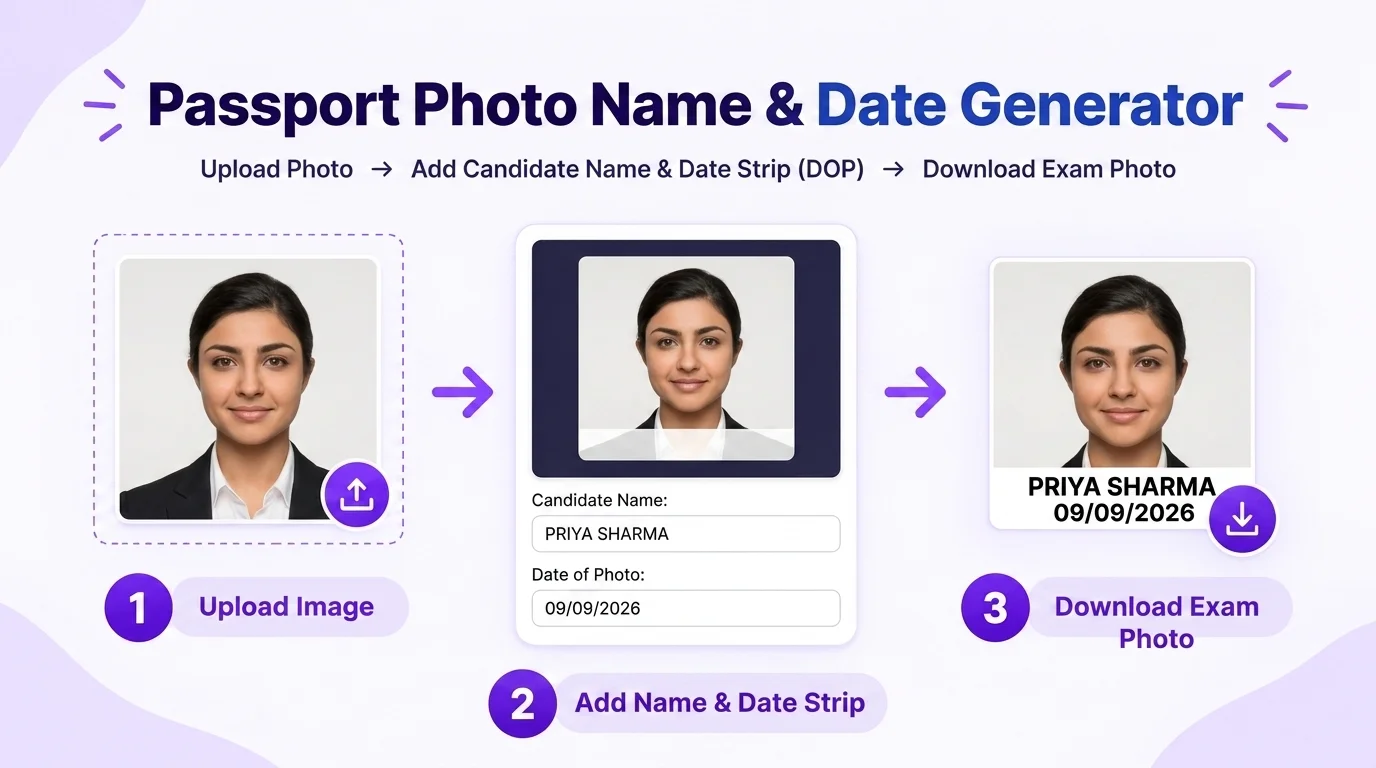
1. Application-Specific Caption Scenarios
| Application scenario | What to copy from the instructions | Date handling | Final verification |
|---|---|---|---|
| Name + photo-capture date requested | Exact name spelling, capitalization, strip position and date format | Use the requested date meaning and any stated recency window | Check dimensions, KB and format after adding text |
| Name only requested | Copy the name exactly as it appears in the application | Leave the date disabled unless the instructions ask for one | Confirm that the strip does not cover required portrait area |
| No caption requested | Do not add extra name/date text | Keep the photo uncaptioned | Use the normal passport-photo workflow |
2. Common Caption Mistakes to Avoid
- Using the wrong date meaning: If the application asks for the photo-capture date, entering a birth date or application date creates a mismatch. Copy the requested date meaning exactly.
- Hard-to-read text: Very small, low-contrast, or blurred lettering can make the caption difficult to interpret. Keep the text clear and follow any specified font or strip style.
- Covering the portrait: A caption should not obscure the face or other area that the application expects to remain visible. Use the preview and compare it with the current instructions.
3. How to Generate in Photocopy Wale Studio
- Upload your clear portrait into Photocopy Wale.
- Switch to the Name & Date tab in the editor controls.
- Enter the name and date exactly as your application requests. The displayed examples are formatting examples only.
- Download the result, then verify the final pixel/physical dimensions, file size, format, and caption placement against the application instructions.
Frequently Asked Questions
How do I know whether my application requires a name/date caption?
Read the current photo-upload instructions or notification for the application you are completing. Requirements change, and some application systems use live photo capture or do not ask for a caption at all. PhotocopyWale should not be used as the source of that requirement.
What date format should I use on the caption?
Use the exact date format stated by the application. DD/MM/YYYY and DD.MM.YYYY are common display formats, but neither should be treated as universal when the instructions specify something else.
How recent should the photo be when a caption includes its capture date?
Use any photo-recency window stated in the current application instructions. If no recency rule is stated, do not invent one; the receiving authority remains the source for that requirement.
Should the name be written in capital letters?
Only if the application asks for uppercase. Otherwise, enter the same name spelling used in the application and choose a clear style that keeps the caption readable.
What proportion of the photo should the white name & date strip occupy?
There is no universal caption-height percentage. Keep the caption separate from the face and use any strip height, margin or layout specification stated in the current application instructions.
What happens if I omit a caption that the application explicitly requires?
If the current instructions explicitly require a caption, omitting it can make the submitted image fail that requirement. Verify the notification before submission rather than relying on a generic rule.
 Author & Technical Review
Authored by Shrikant Yadav (https://shrikantyadav.com/). This guide deliberately avoids treating past exam notices as permanent rules. Verify the current notification for the application you are completing and see the Passport Photo Information Policy.
Add Name & Date to Your Photo Now
Add a name/date caption when your application asks for one, then verify the final photo against its current instructions.
Open Passport Photo Studio