
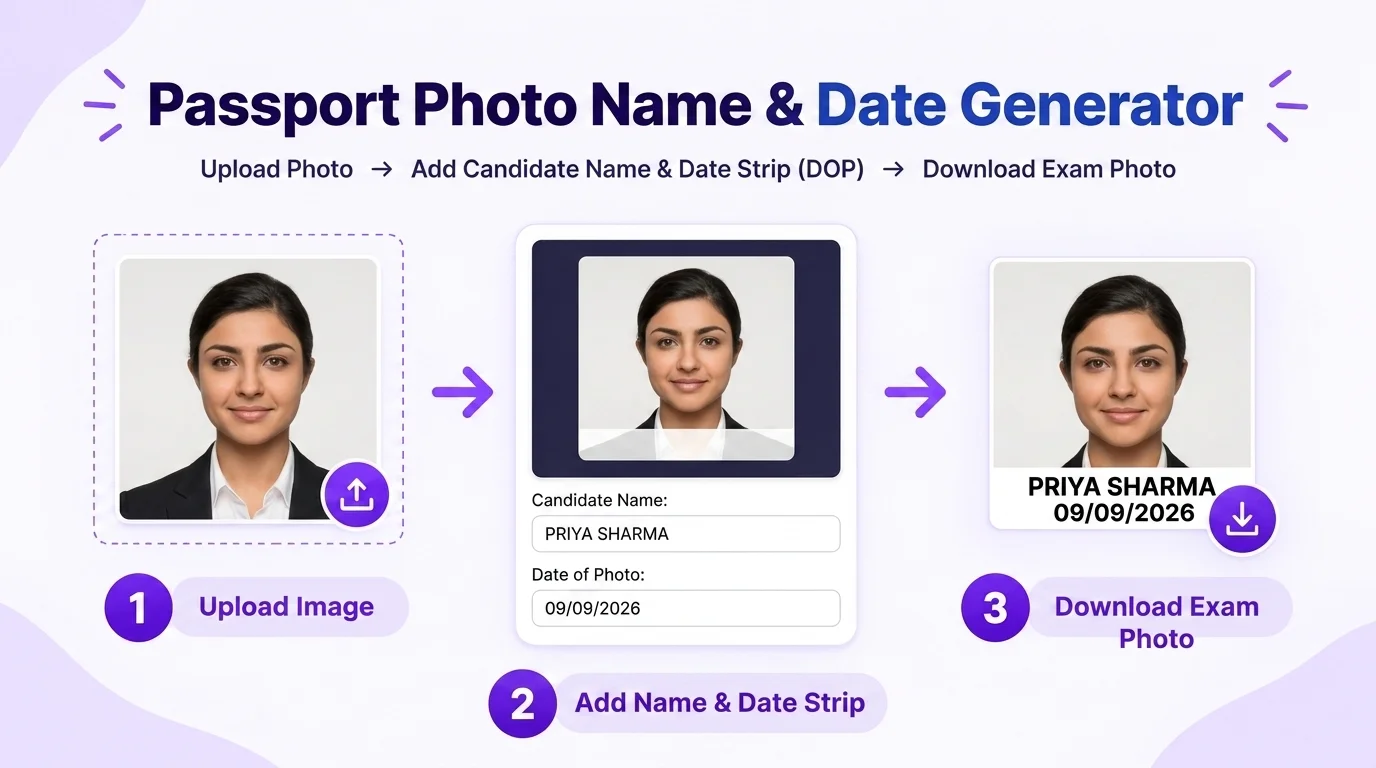
Passport Photo Name & Date Generator
Add a clear name/date caption below a passport-style photo when your application explicitly requires one. Preview the text, spacing and strip placement before downloading, and copy the wording/date format from the current application instructions.
Directly generating Name & Date? If your photo needs face framing or lighting enhancement first:
Passport Photo Name & Date Generator
Add an optional name and date strip when your application asks for one
Candidate Name & Date Strip Generation When Requested
More Dedicated Tools in Passport Photo Studio
All tools share your active photo session. Switch between tools without re-uploading:
Use a selected passport-photo ratio with visual face-position guides.
Passport Photo EnhancerSolid pure white background (#FFFFFF) and studio lighting balance.
Passport Photo Print SheetTile 30 photos on A4 or 8 on 4×6" with safe print margins & cut lines.
Passport Photo CompressorCompress toward a target KB only when your application specifies a file-size limit.
Name & Date Requirements Vary by Application
Applications can differ on whether a caption is required, what it must contain, and how it should be formatted. Use the examples below as editing scenarios only:
| Examination Authority | Candidate Name | Date of Photo (DOP) | Dimensions & File Size |
|---|---|---|---|
| Application asks for name + capture date | Enter name exactly as instructed | Use the requested date meaning and format | Keep the caption within the requested photo layout |
| Application asks for name only | Use the spelling/case from the form | Leave date disabled unless requested | Check crop after adding the caption |
| Application asks for date only | Leave name disabled unless requested | Use the exact date specified | Verify final dimensions and KB after export |
| No caption requested | Do not add extra text | Do not add a date | Use the plain passport-photo workflow |
3 Checks Before Adding a Date of Photo (DOP)
Use the Required Recency Rule
Do not assume a fixed photo-date window. If an application asks for the date on which the photograph was taken, copy the required date format and any freshness rule from that application's current official notice. If no caption is requested, adding one can change the submitted image unnecessarily.
Do Not Confuse with DOB
When an application uses “DOP” to mean “Date of Photo,” use the date meaning and format stated in that application. Do not substitute another date, such as date of birth, unless the instructions explicitly ask for it.
Clean High-Contrast Strip
If the application asks for a digitally added caption, use clear text and preview the strip before export. Do not assume handwritten or digitally added text is allowed unless the current instructions specify the required method.
Top 4 Mistakes on Photos with Name & Date
A caption should not cover the face or interfere with the required crop. Preview the strip position and follow any placement rule stated by the application.
Accidentally typing a date later than today's date invalidates the application during automated scrutiny.
If an application specifies how the candidate name must be written, copy the spelling, order and capitalization from that instruction. Do not assume one naming rule applies to every form.
Low-grade editors blur the date digits when compressing under 50 KB. Photocopy Wale preserves vector sharpness on text.
Need Biometric Cropping, White Background, or Print Sheets?
Our flagship Passport Size Photo Maker lets you choose photo dimensions, prepare the background, add a name/date caption when requested, and create printable sheets in one browser workflow.
Frequently Asked Questions About Name & Date Photos
When should I add a name and date below a passport-style photo?
Add a name, date, or caption only when the current instructions for your application explicitly ask for it. PhotocopyWale provides the formatting controls but does not decide whether a caption is required.
What date should I write in the Date of Photo (DOP) field?
Use the exact date meaning and format stated by your application. If it asks for the date the photo was taken, enter that capture date; do not substitute a birth date or another date unless instructed.
Should the candidate name be in CAPITAL letters?
Use the capitalization requested by your application. If no capitalization rule is stated, prioritize a clear, legible name that matches the spelling in the application.
Does the white text strip cover any part of the face or chin?
Use the preview to keep the caption separate from important facial detail. Caption height and placement should follow the application instructions rather than a universal percentage.
Can I download the photo with Name and Date directly in 1 click?
Yes. After entering the requested name/date text, review the preview and download the result. Then verify the final dimensions, file size, format and caption requirement against your application.
Is this tool free and private for competitive exam aspirants?
The current site provides a free daily usage quota. Caption rendering is part of the browser-based editor; see the Privacy Policy for browser storage and optional connected-service details.