Passport Size Photo Maker
Create and prepare passport-style photos online with guided cropping, background controls, optional adjustments, compression, name-and-date captions when requested, and printable A4 or 4×6 sheets. Choose the exact settings required for your application.
Passport Photo Maker
Drag & drop photos here, or browse file
From Any Casual Photo to 3.5 × 4.5 cm Cutout & Multi-Photo Print Sheet
What is the Online Passport Size Photo Maker?
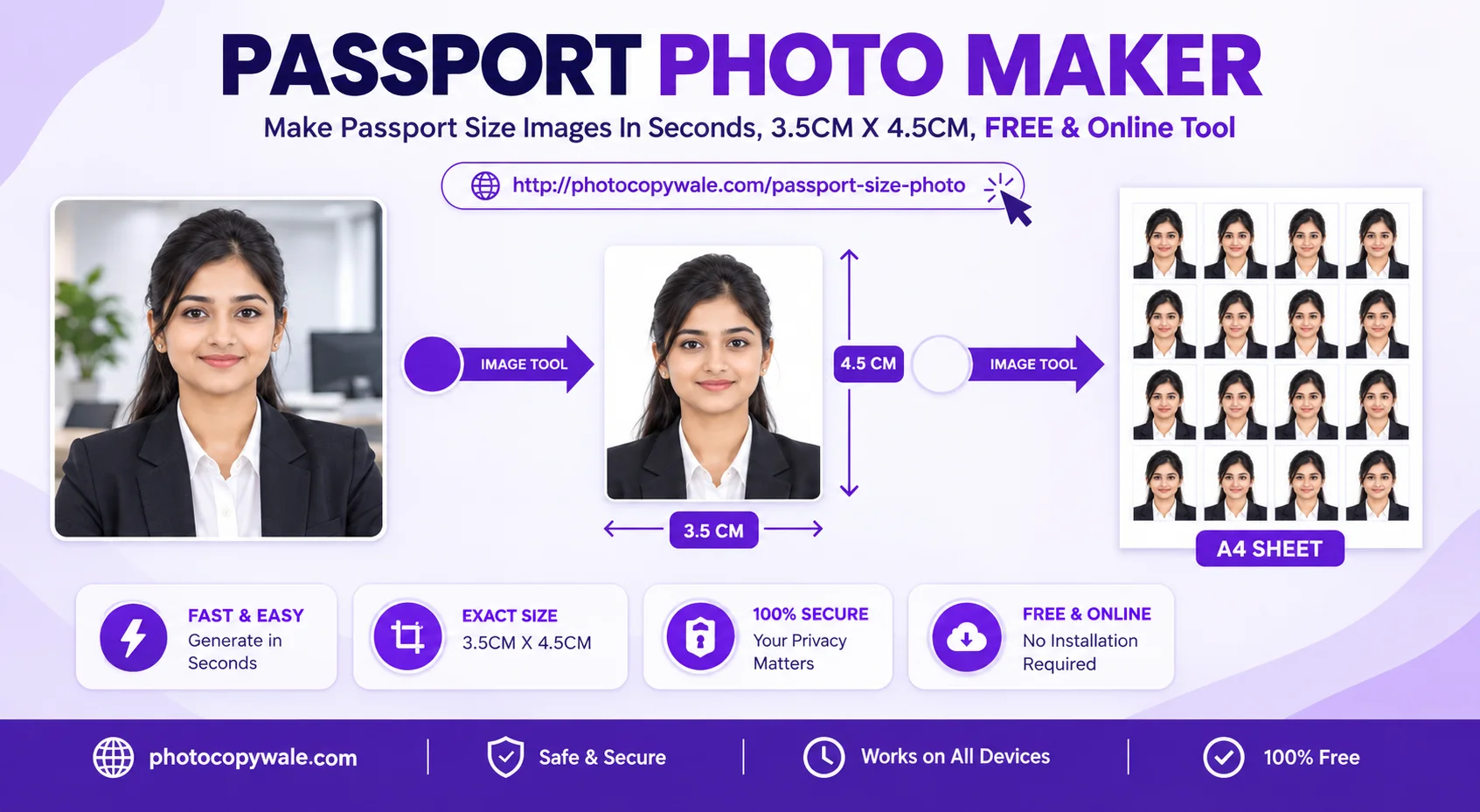
A passport-style photo is a formal identity portrait prepared to the dimensions and framing rules of the receiving authority. One common physical format is 35 × 45 mm (3.5 × 4.5 cm), which converts to approximately 413 × 531 pixels at 300 PPI. That size, face coverage, background color, and capture method are not universal, so treat them as settings to verify rather than default acceptance rules.
The Passport Size Photo Maker by PhotocopyWale combines crop, background preparation, restrained adjustments, target-file-size export, and print tiling in one workflow. The print engine can arrange selected photos on common paper sizes such as 4×6 inch, 5×7 inch, A4, and A3 with cutting guides. The actual number of copies, print cost, and suitability for an application depend on the chosen photo size, margins, printer, paper, and the receiving authority's current requirements.
Dedicated Sub-Tools for Every Step of Your Passport Photo
Need only a crop, target-KB export, restrained clarity adjustment, optional name/date caption, or print sheet? Launch the relevant passport-photo tool directly. Use application-specific size and file limits rather than assuming one preset is valid everywhere:
Passport Photo Cropper
Face-position guides, preset or custom aspect ratios, smooth pan, zoom, and rotation controls. Use the guides as editing aids and set dimensions from the passport application you are preparing.
Passport Photo Enhancer
Fix underexposed mobile camera shots with studio brightness, contrast, sharp definition, and skin tone lighting balance in 1 click.
Passport Photo Name & Date Generator
Add a candidate name and date banner when the current application or notification explicitly asks for a caption. Do not add one by default.
Passport Photo Print Sheet Maker
Arrange repeated passport photos on A4, 4×6, and other supported sheet formats with spacing and cut guides. Capacity changes with photo size, margins, spacing, and printer-safe area; preview the actual layout before export.
Passport Photo Compressor
Compress a passport photo toward 20 KB, 50 KB, 100 KB, or a custom target. Smaller files can lose detail, so inspect the result and match the current portal limit.
From Casual Phone Photo to Prepared Passport-Style Photo
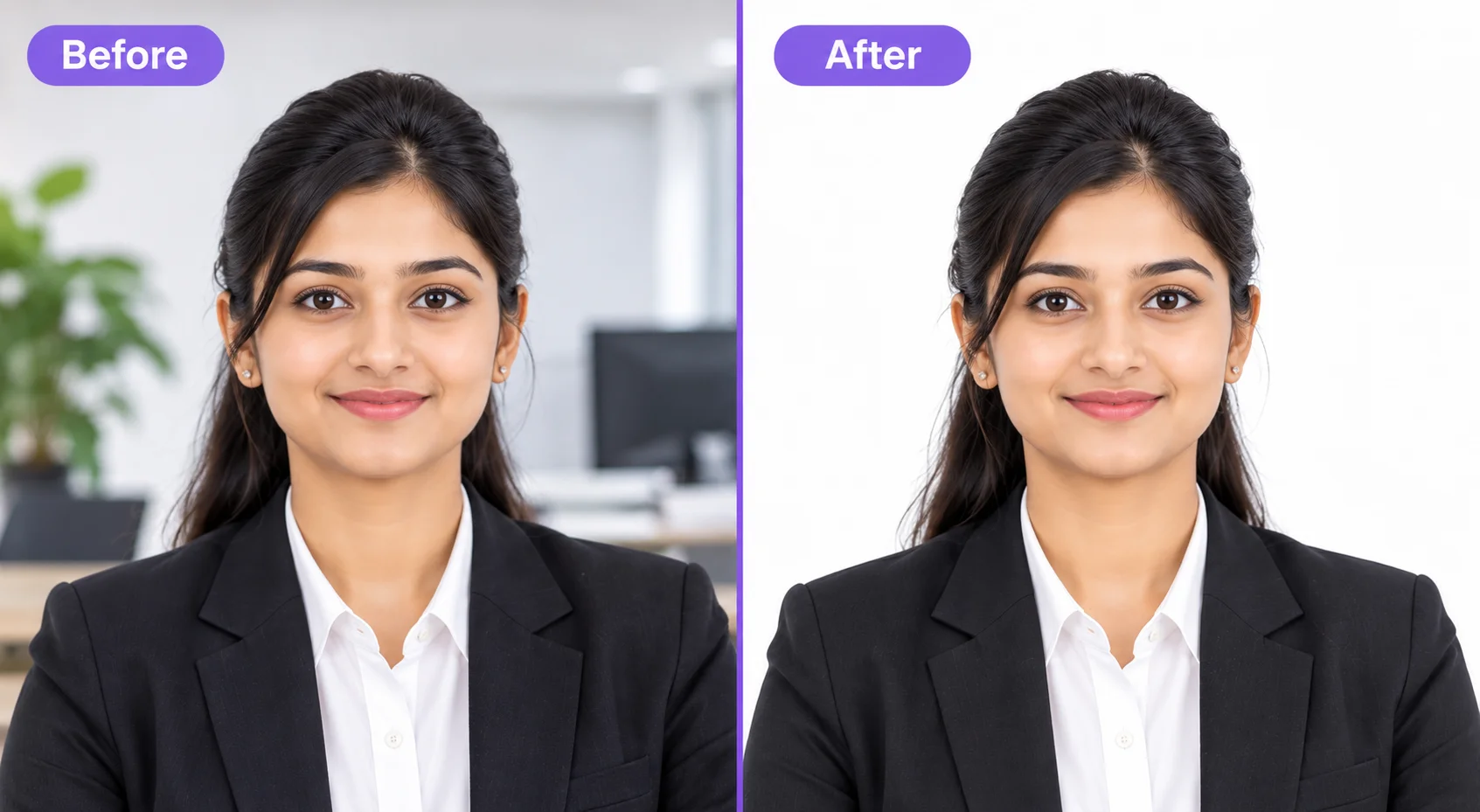
See how PhotocopyWale can crop to a selected 35×45 mm example, remove a distracting room background, and improve presentation without changing the core identity of the person:
Why Choose Photocopy Wale for Passport Photos?
Everything you need to create, customize, and print passport-style photos from a supported browser:
35×45 mm & Custom Crop Controls
Choose a 35×45 mm example or enter the dimensions required by your application, then use face guides, zoom, pan, and crop without stretching facial proportions.
Background Preparation & Edge Review
Remove or replace a distracting background in the browser, then inspect hair, ears, shoulders, and clothing edges before export.
Multi-Person Batching (Up to 6 Faces)
Prepare multiple photos in one session up to the selected sheet capacity and arrange selected outputs on a shared print sheet when that workflow is useful.
Optional Name & Date Caption
Add a clear text strip only when the current application or notification explicitly asks for a name, date, or other caption.
Appearance & Lighting Adjustments
Use brightness, contrast, clarity, and optional overlays carefully. Identity-photo edits should preserve the person's real facial appearance.
Target-KB Compression & Export
Reduce file size toward common upload targets such as 20 KB or 50 KB while checking the resulting dimensions and visible image quality.
Passport Photo Size & Output Examples
Passport-style photo workflows can use different physical and digital limits. Use the built-in presets as convenient starting points, then verify the current dimensions, format and file-size instructions for the application you are preparing:
| Document Preset | Dimensions | Digital Pixels | Head Ratio | Background | File Size |
|---|---|---|---|---|---|
35 × 45 mm Example | 35 × 45 mm | ≈ 413 × 531 px @ 300 PPI | Use application-specific framing | Use required background | Use current upload limit |
2 × 2 Inch Example | 50.8 × 50.8 mm | 600 × 600 px @ 300 PPI | Square crop; framing varies | Use required background | Use current upload limit |
Custom Physical Size | Enter mm / cm / inches | Calculated from PPI | Follow current instructions | Choose requested color | Custom target available |
Custom Digital Upload | Enter pixel dimensions | Exact width × height | Preserve natural proportions | Application-specific | Match portal limit |
4×6 Print Sheet | 101.6 × 152.4 mm paper | Depends on export resolution | Uses selected photo crop | Uses selected photo background | Print output, not portal limit |
A4 Print Sheet | 210 × 297 mm paper | Depends on export resolution | Uses selected photo crop | Uses selected photo background | Measure a test print |
How to Make a Passport Size Photo Online?
Follow these steps to prepare a passport-style photo from your phone or computer, then compare the result with the latest instructions for your application:
Upload Photos (1 to 6 People)
Upload clear portraits from your phone or computer. You can add multiple photos for batch preparation up to the selected sheet capacity. Core editor operations are browser-based; browser storage can retain drafts, preferences, sessions, or usage state.
Crop & Align Face Guides
Select the size or custom dimensions that match your application. Use the on-canvas face guides as alignment aids, then rotate, pan, and zoom without stretching facial proportions.
White Background & Details
Choose the background requested by your application and inspect edges around hair and shoulders. Add a caption strip only when the application asks for it, and treat attire changes cautiously for identity-photo use.
Download Photo or Print Sheet
Download a single photo using the dimensions, format, and compression settings you choose, or generate an A4, 4×6, 5×7, or A3 multi-photo print sheet with optional cutting guides.
Top 7 Passport Photo Rejection Traps (And How to Avoid Them)
Many passport-photo problems are preventable before export. Use this checklist to catch issues involving crop, perspective, background, glare, image quality, and print scaling before you submit or print.
Strong shadows, gradients, or obvious background artifacts can conflict with some application rules. Use even lighting and verify the required background for your specific application.
A tilted or off-center portrait may not match the receiving authority's framing instructions. Use the on-screen guides as preparation aids and compare the result with the current official guidance.
Some identity-photo processes ask for a neutral expression, while exact wording varies. Follow the expression instructions published for the application you are using.
Glare and dark lenses can hide eye detail. If glasses are allowed for your application, make sure the eyes remain clearly visible and follow the authority's current rules.
Low contrast between clothing and the selected background can make shoulder edges hard to distinguish. Choose a suitable source photo and avoid identity-changing edits.
Changing width and height independently distorts facial proportions. Crop to the required aspect ratio first, then resize the whole image proportionally.
A soft source photo or aggressive compression can remove useful facial detail. Start with a sharp image and check the final output at normal viewing size before use.
Print Multi-Copy Sheets on 4×6, 5×7, A4, or A3 Paper
PhotocopyWale includes a print-layout workflow that arranges multiple copies on common paper sizes with cutting guides. Capacity depends on the selected photo dimensions, margins, spacing, orientation, and printer-safe area:
Printing tip: Use photo paper that is compatible with your printer and application. When exact physical dimensions matter, avoid automatic scaling such as "Fit to Page", print a test sheet, and measure the finished photo with a ruler before final use.
What to Check at Each Passport Photo Preparation Step
A useful passport-photo workflow separates capture, crop, background, file-size, and printing decisions. PhotocopyWale keeps these steps connected while still leaving authority-specific requirements to the current application instructions.
| Preparation Step | PhotocopyWale Control | What to Inspect | What Must Come from Your Application |
|---|---|---|---|
| Capture | Phone/camera source image | Sharp focus, natural perspective, even light | Whether self-captured or uploaded photos are allowed |
| Crop & Size | Preset or custom dimensions | Aspect ratio, headroom, no facial stretching | Required width, height, and framing |
| Background | Removal, color, and edge touch-up | Hair/shoulder edges, shadows, color consistency | Required background color or tone |
| Compression | Target-KB export controls | Facial detail, pixel dimensions, compression artifacts | Minimum/maximum file size and file format |
| Name & Date | Optional caption generator | Spelling, date, contrast, placement | Whether a caption is required at all |
| Print Sheet | 4×6, 5×7, A4, A3 layouts | Margins, spacing, cut guides, measured test print | Required physical size and acceptable print medium |
How Size, Crop, File Size and Printing Work Together
Passport-photo preparation is easier when each requirement is treated as a separate check. The examples below show how to use PhotocopyWale without assuming that one preset, background or file size is valid for every authority.
Example: 35 × 45 mm physical photo
A 35 × 45 mm rectangle has a 7:9 aspect ratio. At 300 PPI it is approximately 413 × 531 pixels. Those values are mathematical conversions. If your application asks for 35 × 45 mm but gives a different pixel requirement, use the application-specific pixel value instead of forcing the 300 PPI example.
See dimension mathExample: upload has a maximum KB limit
Crop and size the portrait first, then compress toward the required file-size limit. KB is not the same thing as pixels: two JPEG files with identical width and height can have different file sizes because image detail and compression settings differ. Inspect the downloaded result around the eyes, hairline and edges after strong compression.
Open target-KB compressorExample: printed copies are needed
Choose the required physical photo size, create a sheet, select the matching paper in the print dialog and avoid unintended fit-to-page scaling when exact dimensions matter. Printer drivers and printable margins differ, so measure one finished copy with a ruler before printing or cutting a large batch.
Read printing guideCheck the Photo Before You Download, Upload or Print It
A technically correct width and height do not automatically make a good identity photograph. Before export, inspect the source quality, crop, background, facial detail and final file settings separately. This reduces avoidable mistakes without pretending that the tool can make an authority's acceptance decision.
| Check | What to look for | If something is wrong |
|---|---|---|
| Source sharpness | Eyes, hair and facial edges should not look motion-blurred or heavily pixelated. | Return to a sharper original photo when possible; enhancement cannot recreate reliable identity detail that was never captured. |
| Crop & ratio | Face remains natural, upright and not stretched; no important area is accidentally clipped. | Reposition or zoom inside the target crop instead of changing width and height independently. |
| Background | Color matches the requirement you verified; edges around hair, ears, neck and shoulders look natural. | Refine the background or recapture against a simpler backdrop if editing creates halos or missing edges. |
| Adjustments | Face still looks like the original person; skin texture and identifying features have not been generated or reshaped. | Reduce heavy enhancement and prefer restrained brightness/contrast corrections. |
| Dimensions | Width, height, aspect ratio and—when specified—pixel dimensions match the current application instructions. | Return to the size/crop step and use the requirement from the receiving authority. |
| File size | Final KB/MB falls inside the requested range without obvious compression artifacts. | Adjust compression gradually and recheck the final downloaded file. |
| Printed size | A measured test copy matches the intended physical width and height. | Check paper size and printer scaling; do not distort the portrait to compensate for printer settings. |
Where the Final Requirement Should Come From
PhotocopyWale can calculate units, preserve a selected ratio, apply editing controls and generate files or print layouts. Requirements such as the accepted physical size, background, recency, capture method, file format, maximum KB and permitted editing come from the authority receiving your photograph. Check the current official instructions for that exact application before relying on a preset.
This separation is intentional: a 35 × 45 mm to pixel conversion can be verified mathematically, while an authority's photo policy can change. Read our Passport Photo Information Policy for how technical facts and authority-specific rules are handled across the site.
Frequently Asked Questions
1. Is the Passport Photo Maker by Photocopy Wale free with no watermark or coins?
Yes, you get 5 free operations daily without login with zero watermarks, zero coin paywalls, and zero hidden charges. Need more? Simply log in with a free account to claim 20 operations per day. You can create, edit, and download single high-resolution photos and complete multi-photo print sheets with zero restrictions.
2. How do common passport-photo sizes convert between mm, cm, inches, and pixels?
As a technical example, 35 × 45 mm equals 3.5 × 4.5 cm and about 1.38 × 1.77 inches. At 300 PPI, that physical size maps to approximately 413 × 531 pixels after rounding. This conversion does not mean every passport authority uses 35 × 45 mm; always verify the current dimensions and framing instructions for your application.
3. How does Photocopy Wale protect user privacy compared to other online tools?
The core editor is designed to perform its standard image operations in the browser. The site may also use local or session browser storage for drafts, preferences, usage state, and sessions. Optional external or connected features can have separate data flows, so review the privacy policy and provider terms before using them.
4. Can I process photos for multiple family members or applicants at once?
Yes! While other tools limit users to 1 to 3 people, Photocopy Wale lets you upload multiple family members, students, or colleagues up to the selected sheet capacity. The tool automatically arranges all individuals on a single 4×6 inch, 5×7 inch, or A4 printable sheet with scissor cutting marks-ideal for families, CSC centers, and cyber cafe operators.
5. How many passport photos fit on a 4×6 inch and A4 sheet, and how do I print them?
Sheet capacity depends on the selected photo dimensions, margins, spacing, borders, and printer-safe area. PhotocopyWale previews the arrangement before export. When printing a sheet designed at exact physical dimensions, use the intended paper size, avoid unintended fit-to-page scaling, and measure one test print with a ruler.
6. How do I compress a passport photo toward a 20 KB, 50 KB, or custom upload limit?
Use the compressor or export controls to choose a target such as 20 KB or 50 KB, then inspect the resulting image for clarity. File-size limits vary by application and can change, so use a preset only when it matches the current instructions from the receiving portal.
7. Can I add candidate Name and Date of Photo (DOP) or change into formal clothes?
Yes. The Name & Date tab can add a caption strip when an application specifically asks for one. PhotocopyWale also includes optional attire overlays, but identity photos should remain a faithful representation of the person and any appearance-changing edit should be checked against the receiving authority's rules.
Ready to Create Your Passport Size Photo?
Upload a suitable portrait, choose the required dimensions, prepare the background, and download a single photo or printable A4 and 4×6 sheet. Verify the current authority-specific requirements before submission.