
Passport Size Photo Dimensions: mm, cm, Inches & Pixels
Passport-photo instructions can express size in millimetres, centimetres, inches or pixels. This guide shows how those units relate, how PPI changes pixel dimensions, how aspect ratio affects cropping, and how to check a printed result without treating one example size as a universal rule.
Quick answer
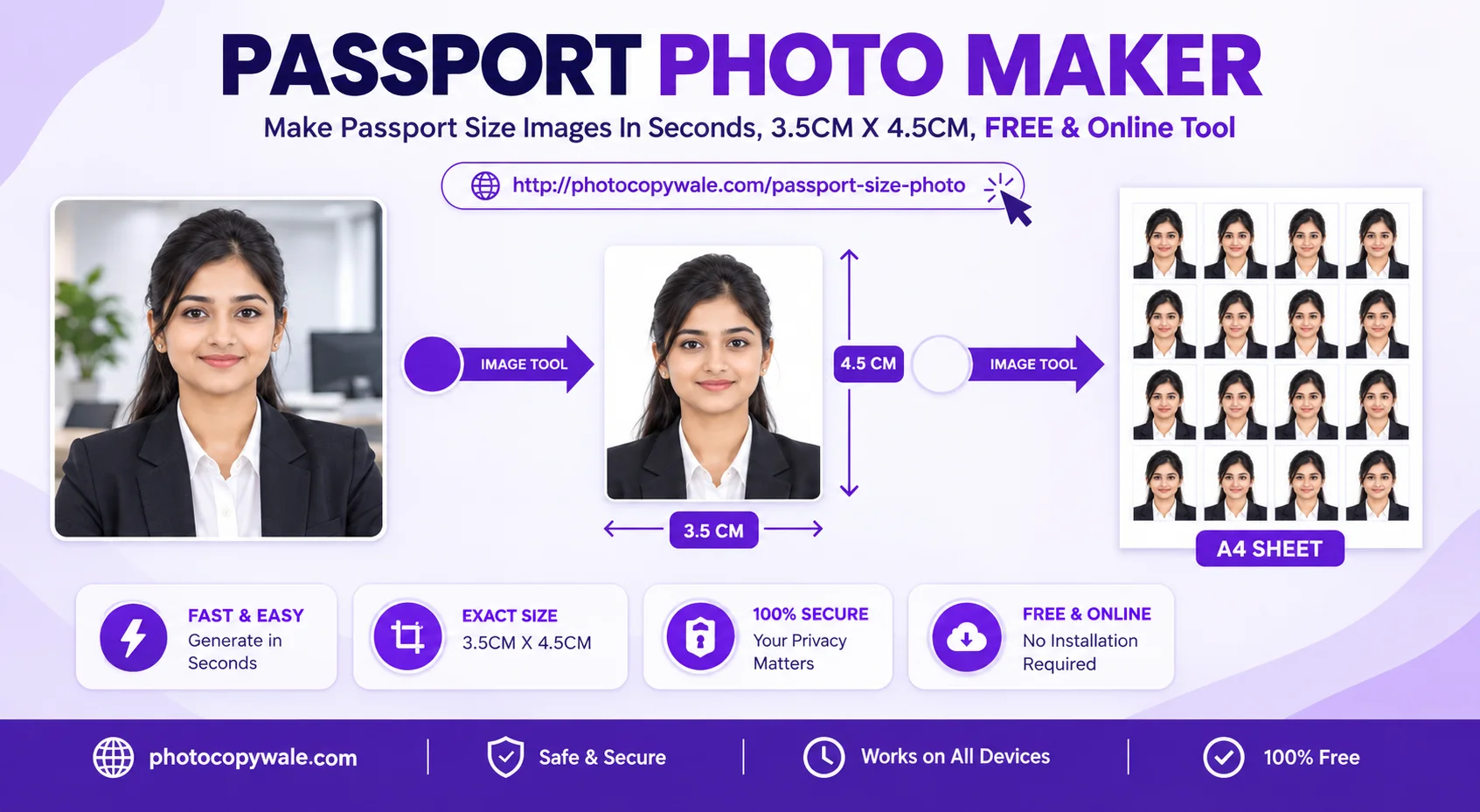
35 × 45 mm is exactly 3.5 × 4.5 cm. At 300 PPI it converts to approximately 413 × 531 pixels. At 600 PPI it is approximately 827 × 1,063 pixels. Those pixel values come from a unit conversion; they do not prove that 35 × 45 mm or 300 PPI is required for your application.
1. Physical size and digital size are different
Printed photographs are normally described with physical units such as millimetres, centimetres or inches. Digital images are described in pixels. You can convert between them only when you also know the intended pixel density, usually expressed as pixels per inch (PPI). Printers often use the term DPI; in everyday photo-printing instructions, people sometimes use DPI and PPI interchangeably, although technically they describe different things.
Millimetres (mm)
A physical length. 10 mm = 1 cm.
Centimetres (cm)
A physical length. 1 cm = 10 mm.
Inches (in)
A physical length. 1 inch = 25.4 mm.
Pixels (px)
A digital image dimension; physical size depends on PPI.
Important: a pixel conversion is mathematics, not an official requirement. If an authority asks for a specific pixel width, height, file size or printed dimension, use that exact instruction instead of assuming a generic preset.
2. Passport photo conversion formulas
mm → inches
inches = mm ÷ 25.4
Example: 35 mm ÷ 25.4 ≈ 1.378 inches.
mm → pixels
pixels = (mm ÷ 25.4) × PPI
Round to the nearest whole pixel for practical image dimensions.
pixels → mm
mm = (pixels ÷ PPI) × 25.4
Useful when checking what physical size a digital image represents at a chosen PPI.
Worked example: 35 × 45 mm at 300 PPI
Width: (35 ÷ 25.4) × 300 ≈ 413 pixels
Height: (45 ÷ 25.4) × 300 ≈ 531 pixels
Result: approximately 413 × 531 px.
3. Pixel conversion table for common example dimensions
The table below is generated from the same conversion formula. It is useful when a print workflow asks you to prepare a particular physical rectangle at a chosen pixel density.
| Physical size | Ratio | 150 PPI | 200 PPI | 300 PPI | 600 PPI |
|---|---|---|---|---|---|
| 35 × 45 mm | 7:9 | 207 × 266 px | 276 × 354 px | 413 × 531 px | 827 × 1063 px |
| 30 × 40 mm | 3:4 | 177 × 236 px | 236 × 315 px | 354 × 472 px | 709 × 945 px |
| 40 × 50 mm | 4:5 | 236 × 295 px | 315 × 394 px | 472 × 591 px | 945 × 1181 px |
| 2 × 2 inch | 1:1 | 300 × 300 px | 400 × 400 px | 600 × 600 px | 1200 × 1200 px |
For the 2 × 2 inch row, 50.8 × 50.8 mm is used because 2 inches equals exactly 50.8 mm.
4. Dimensions determine aspect ratio—and that controls cropping
A 35 × 45 mm rectangle has a width-to-height ratio of 35:45, which simplifies to 7:9. A square 2 × 2 inch format has a 1:1 ratio. A 30 × 40 mm rectangle is 3:4. The ratio matters because a source photo from a phone may have a different shape.
Crop, do not stretch
If the source ratio does not match the target ratio, remove some area from the edges while keeping the face natural. Stretching changes facial proportions.
Preserve enough source pixels
Heavy cropping can leave too few pixels for a clear output. Start with a sharp, reasonably high-resolution photo when possible.
Check the target first
Choose the dimensions required by the receiving authority before you crop. Changing the target later can require a different crop.
For a deeper explanation of ratios, see the passport photo aspect-ratio guide.
5. Pixel dimensions are not the same as KB or MB
A frequent source of confusion is treating dimensions and file size as the same requirement. They are independent constraints. A JPEG that is 413 × 531 pixels might be 25 KB, 80 KB or several hundred KB depending on compression, content detail, metadata and encoding settings.
| Property | What it describes | Typical unit | How to change it |
|---|---|---|---|
| Physical size | Printed width and height | mm, cm, inches | Choose print dimensions/layout |
| Pixel dimensions | Digital width and height | px | Resize/crop appropriately |
| File size | Storage/upload weight | KB, MB | Compression/encoding |
| Aspect ratio | Proportion of width to height | 7:9, 1:1, 3:4 | Crop to matching shape |
When an online form gives both a dimension range and a file-size limit, satisfy both independently. The passport photo compressor can help with a target file size after the dimensions are prepared.
6. How to keep the intended physical size when printing
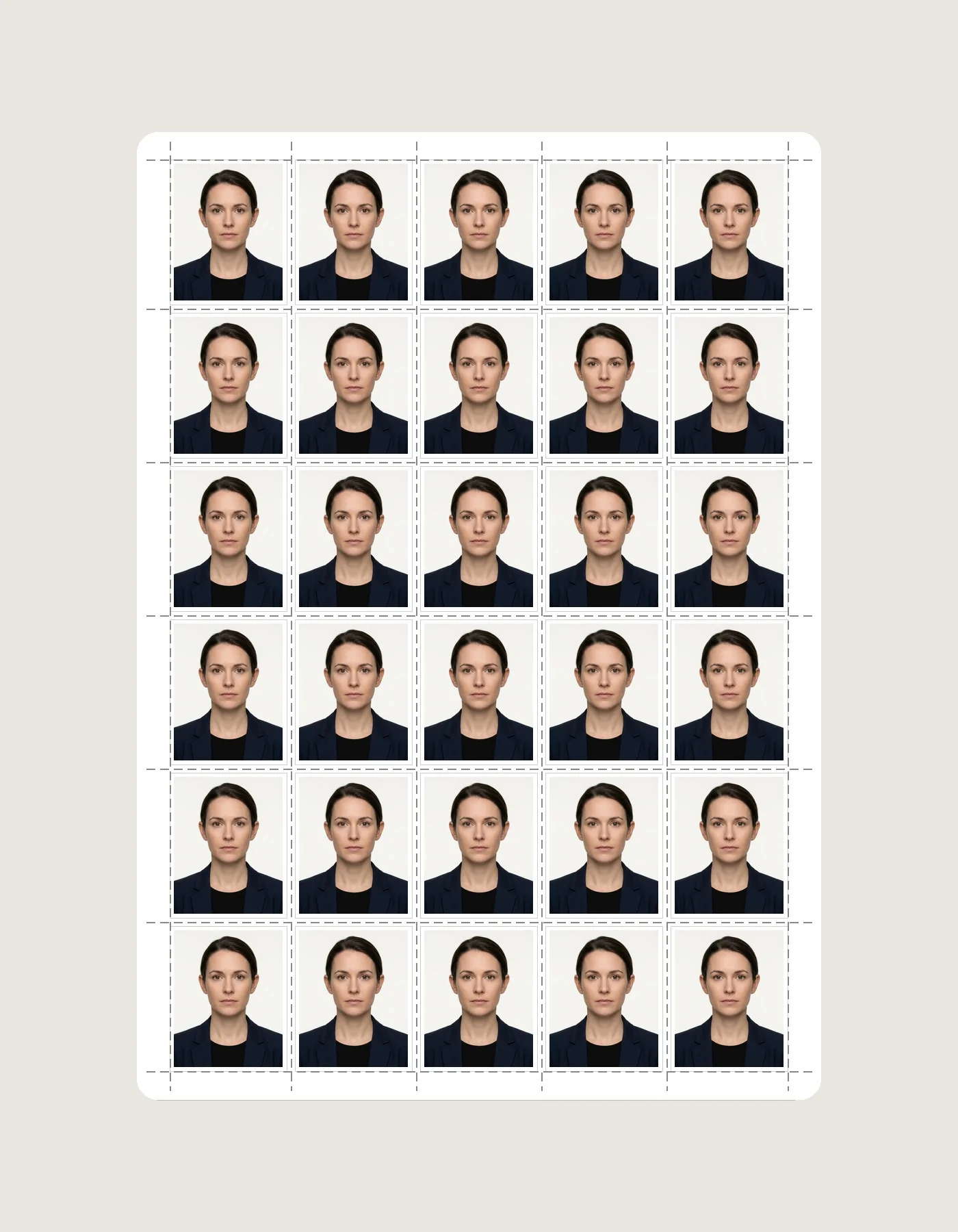
A correctly sized digital layout can still print at the wrong physical dimensions if the printer driver scales the page. “Fit to page”, borderless expansion and automatic photo enlargement can all alter size. For dimension-sensitive prints, verify the print dialog and measure a test output with a ruler.
Choose the required physical photo dimensions before creating the sheet.
Use an appropriate page size in both the layout and printer settings.
Avoid unintended “fit”, “shrink” or enlargement options when exact physical size matters.
Print one test sheet and measure a sample with a ruler before printing many copies.
If the measured size is wrong, correct the print scaling rather than changing the person’s facial proportions.
For layouts, see the A4 passport photo sheet maker and the passport photo printing guide.
7. A reliable dimension-preparation workflow
1. Read the current instructions
Write down the exact width, height, permitted format and any pixel/file-size limits from the authority receiving the photo.
2. Choose the target shape
Set the required dimensions before cropping so the crop frame uses the correct aspect ratio.
3. Crop without distortion
Move and zoom the source image within the frame. Do not squeeze or stretch the face to make it fit.
4. Resize only after cropping
Create the required digital dimensions after the composition is correct.
5. Compress separately if needed
If there is a KB limit, reduce the file size while checking that the face remains clear.
6. Verify the output
Check width, height, format and file size again before submitting or printing.
8. How to verify the correct dimensions for your application
Passport-style photographs are used in many contexts, but there is no single set of dimensions that can safely be assumed for every application. When a page discusses an authority-specific rule, PhotocopyWale’s policy is to separate that requirement from general photo mathematics and to point users toward the current primary source whenever possible.
Verification checklist
- Identify the exact authority and application you are submitting to.
- Use the current official website, notice, form instructions or embassy/consulate page for that application.
- Check whether the rule is for a printed photo, a digital upload, or both.
- Record width, height, file format, file-size limit and any background/composition instructions separately.
- If two official pages conflict, prefer the instructions attached to your current application and contact the authority if necessary.
See how PhotocopyWale handles passport-photo information and the passport photo requirements guide.
9. Common dimension mistakes
| Mistake | Why it happens | Better approach |
|---|---|---|
| Typing 35×45 as pixels | Physical dimensions were mistaken for pixel dimensions. | Convert using the required PPI or use the exact pixels specified by the application. |
| Stretching a 3:4 phone photo into 7:9 | Resize was used instead of proportional cropping. | Crop to the target ratio, then resize. |
| Assuming 300 PPI is mandatory | A common print convention was mistaken for an authority rule. | Use the PPI/pixel requirement stated for your application. |
| Confusing 50 KB with 50 pixels | File size and dimensions were mixed together. | Treat KB and pixel dimensions as separate constraints. |
| Correct file, wrong print size | The printer scaled the sheet automatically. | Check actual-size/scale settings and measure a test print. |
| Using a preset without checking | A familiar size was assumed to apply everywhere. | Verify current official requirements first. |
10. Frequently asked questions
How many pixels is 35 × 45 mm at 300 PPI?
Approximately 413 × 531 pixels. The calculation is (millimetres ÷ 25.4) × PPI for each dimension.
Is 3.5 × 4.5 cm equal to 35 × 45 mm?
Yes. One centimetre equals 10 millimetres, so the two notations describe the same physical size.
Is 2 × 2 inch the same as 35 × 45 mm?
No. 2 × 2 inches is 50.8 × 50.8 mm and is square; 35 × 45 mm is a vertical 7:9 rectangle. Which one you need depends on the relevant authority.
Can I determine file size from pixels alone?
No. File size also depends on image format, compression quality, image detail and metadata.
Does changing PPI change the aspect ratio?
No. If width and height are converted consistently, the width-to-height proportion stays the same.
Should I always use the largest possible pixel size?
Not necessarily. Follow the accepted range for the intended upload or print workflow. Oversized files can exceed portal limits, while very small images can lose useful detail.
Can PhotocopyWale guarantee acceptance?
No. PhotocopyWale helps prepare technical photo settings; the receiving authority decides acceptance. Verify its current instructions before submission.
Use the exact dimensions your application asks for
PhotocopyWale can help you crop, size, compress and arrange passport-style photos. It does not replace current instructions from the authority receiving your photograph.