Passport Photo Enhancer
Adjust brightness, contrast and background while keeping the person recognisable and natural. Use attire overlays only when appropriate for the intended use, and verify the current authority-specific rules before submitting an edited identity photo.
Directly enhancing? If your photo needs face framing or cropping to 35×45 mm first, you can use our cropper:
Passport Photo Enhancer
Solid pure white (#FFFFFF) background whitening, lighting & suits
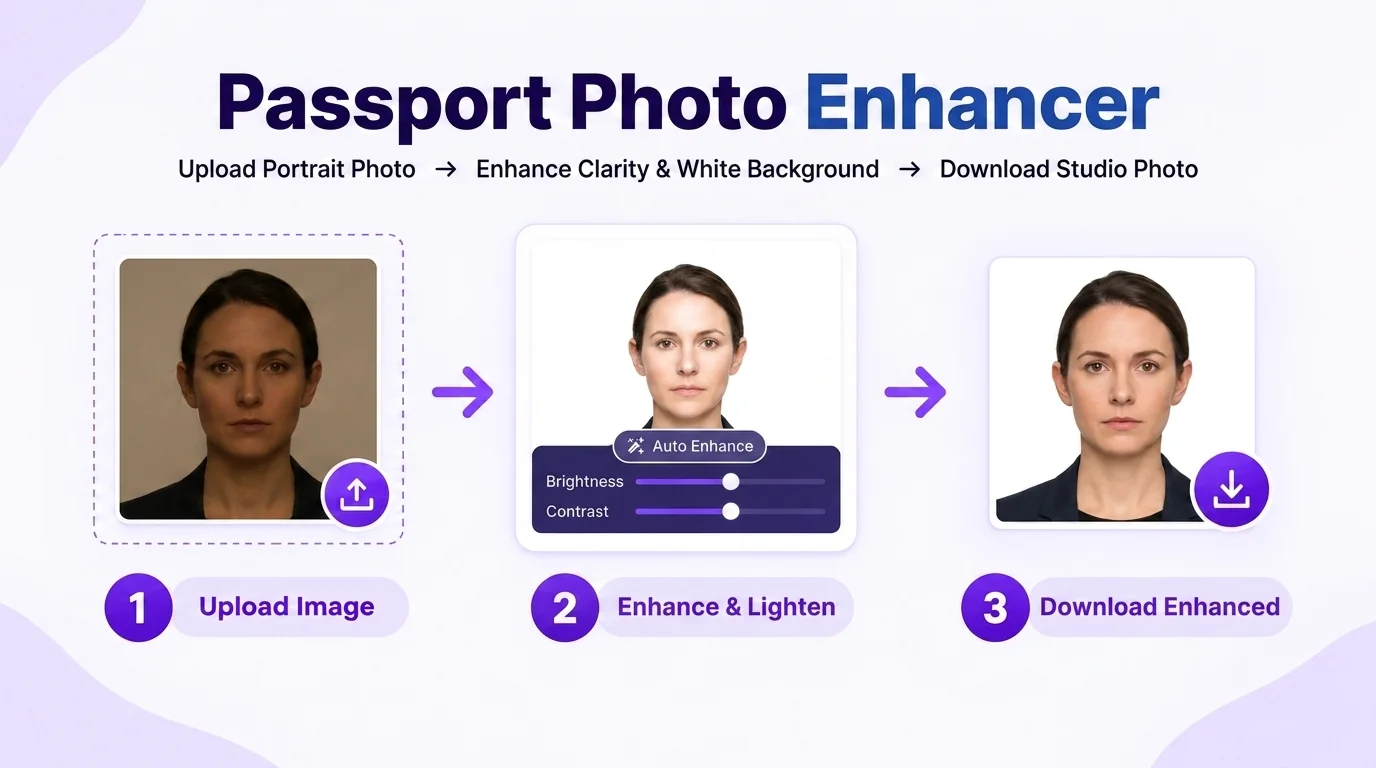
3-Step Clarity Enhancement & Solid Selected Color (#FFFFFF) Background
More Dedicated Tools in Passport Photo Studio
All tools share your active photo session. Switch between tools without re-uploading:
Lock 35×45 mm ratio with biometric face alignment oval.
Passport Photo Name & DateOptional name/date caption strip for applications that explicitly request one.
Passport Photo Print SheetTile 30 photos on A4 or 8 on 4×6" with safe print margins & cut lines.
Passport Photo CompressorCompress toward a target KB only when your application specifies a file-size limit.
Why Indian Passports Specifically Mandate Solid Selected Color (#FFFFFF)?
Background requirements differ by passport authority and application. Instead of assuming one color is universal, use the exact current instruction for the photo you are preparing:
Zero Facial Edge Bleed
A background that is close in tone to the hair or clothing can make edges harder to distinguish visually. If the application requests a plain light background, keep it even and inspect the hair and shoulder boundary before export.
Shadow Elimination
Flash shadows against walls or doors can make a background uneven. Reduce strong shadows during capture where possible, then use background cleanup carefully if editing is permitted for the application.
Background Requirement Review
A plain white background is one common preparation option, but it is not universal. Check the exact background color, shadow and edge requirements published for the passport application you are preparing.
How to Balance Studio Lighting & Formal Attire?
Both sides of your face must be evenly illuminated. If one side of your face has a dark shadow from a side window, use our Brightness and Contrast sliders to lift dark areas naturally without washing out your eyes.
Clothing should keep the face, neck and shoulder outline easy to distinguish from the background. Avoid assuming that formal clothing is required; follow any clothing or uniform restrictions stated by the receiving authority.
Top 4 Lighting & Background Mistakes to Avoid
Low-contrast clothing can make the shoulder outline less distinct against a similar background. If clothing choice is under your control, choose enough contrast for a clear outline; do not digitally add or replace attire unless the receiving authority permits that kind of edit.
Harsh smartphone camera flashes reflect white glare spots on spectacles and foreheads. Use soft diffuse natural lighting.
Avoid beauty filters or generative edits that materially change identifying facial features. Passport photos are identity documents, so the prepared image should remain a faithful representation of the person.
Do not assume that cream, blue, grey, off-white or pure white is universally accepted or rejected. Match the background color and editing rules in the current instructions for the receiving authority.
Need Biometric Cropping, Name & Date, or Print Sheets?
Our flagship Passport Size Photo Maker combines selectable photo dimensions, crop guides, background controls, optional captions when requested, compression and multi-photo print sheets in one workflow.
Frequently Asked Questions About Background & Enhancements
Should I use a pure white (#FFFFFF) background for a passport photo?
A clean plain background is useful when a passport application asks for it, but the required color and background treatment vary by authority. Use the enhancer to improve clarity and then compare the result with the current instructions for your application.
Can I remove shadows behind my ears and shoulders with this tool?
The background controls can help create a cleaner light or white background when that is appropriate for your application. Inspect hair and shoulder edges carefully, and use the exact background color requested by the receiving authority.
How does the free formal suit changer work?
The editor includes attire overlays, but identity-photo editing rules vary. Do not use clothing replacement when the receiving authority requires an unaltered capture, and verify the current instructions before relying on any synthetic attire change.
Does enhancing brightness or contrast distort biometric features?
Brightness, contrast and saturation controls are intended for tonal adjustment rather than face reshaping. Use restrained settings and compare the result with the original to make sure identity-bearing features remain faithful.
Can I wear a white shirt in my passport photo?
Low contrast between clothing and the background can make shoulders harder to distinguish. Prefer a naturally captured outfit that keeps the portrait easy to see, and do not use attire replacement if the receiving authority requires an unaltered photograph.
Does the background whitener upload my photo to external servers?
Core adjustment controls are designed to run in the browser. Browser storage and optional connected services are documented separately in the Privacy Policy, so review that page for the current data flow.