How to Change Passport Photo Background to Pure Solid White (#FFFFFF) Online
By Shrikant Yadav • Passport-photo background guide • Editorial review: September 2026
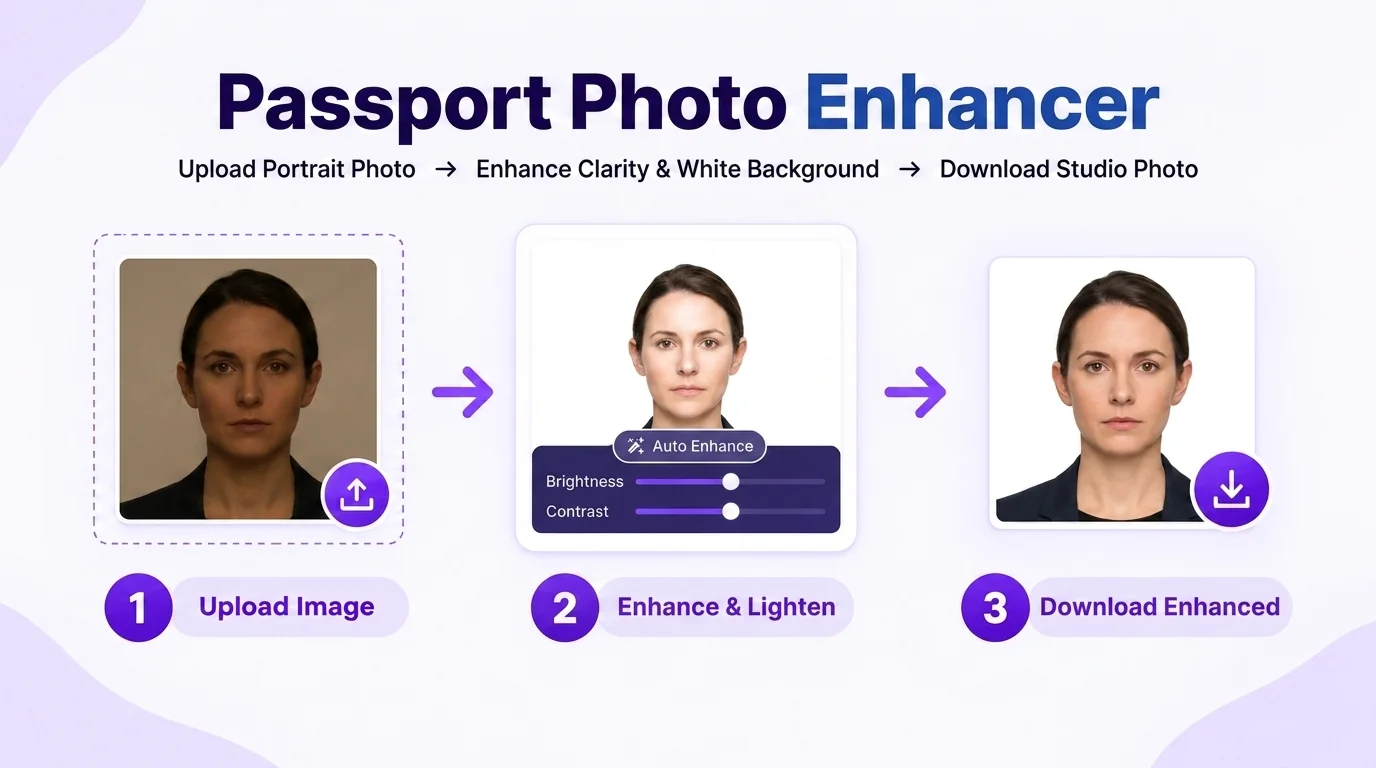
To prepare a white passport-photo background, upload a clear portrait to PhotocopyWale and use the background-removal/whitening controls. Inspect hair, ears, shoulders and edge halos at full size. Pure white is #FFFFFF / RGB 255, 255, 255, but use that color only when it matches the current instructions for your passport application.
1. When Your Passport Application Requests White
Some passport applications ask for a plain light or white background, while others define a different color or capture process. When white is requested, aim for an even background without obvious texture, gradients, hard shadows or edge halos. Treat the application instructions as the source of the requirement.
A plain, even background can make the face easier to see and can help a photograph match applications that explicitly request a light or white background. Background rules vary, so do not assume pure white is required unless the current instructions say so. Avoid obvious shadows, patterns and strong color casts because they can make the portrait look uneven or conflict with a specified background requirement.
2. Why Manual Paint Apps & Erasers Cause Rejection
Jagged Pixel Edges (The "Cutout Look")
Using finger brush erasers cuts off natural hair strands, creating sharp polygonal edges around the skull. Biometric scanners flag these as digital image manipulation.
Color Bleeding / Halo Artifacts
Taking photos against blue or yellow walls causes colored light to reflect onto the candidate's ears and hair. Basic brush apps fail to de-spill these colored reflections.
3. Step-by-Step AI Background Whitening Workflow
- Take a Sharp Home Photo: Stand 5-6 feet from the camera facing indirect window daylight.
- Upload into Photocopy Wale: Open the online studio editor.
- Click "Remove Background": Our client-side neural network removes the background and generates pure solid white `#FFFFFF`.
- Adjust Framing: Use the crop guides for a balanced portrait, then follow any exact head-height or eye-position measurements published for your application.
- Download 300 DPI File: Export a single high-res JPEG or a 30-photo printable A4 sheet.
Frequently Asked Questions
Is pure white (#FFFFFF) always required for passport photos?
No universal color should be assumed. If your passport application requests white, a clean, even white background is appropriate; if it specifies another color or a live-capture process, follow those instructions instead.
How does Photocopy Wale isolate fine hair without jagged edges?
Our client-side AI background remover utilizes neural edge-detection algorithms to cleanly separate fine hair strands and shoulder contours onto pure #FFFFFF white without color bleeding.
Can I use an off-white or light grey background for Indian passports?
Do not assume off-white, light grey, or pure white is acceptable just because it looks similar on screen. Background color is authority-specific, so match the current requirement for the application you are preparing.
How do I remove shadows cast behind my neck and shoulders?
When taking the photo, stand at least 1 to 2 feet away from the wall behind you. Then use Photocopy Wale's "Remove Background" tool to replace the shadowed backdrop with pure solid white.
Does Photocopy Wale upload my photo to any server for background removal?
Core background editing is designed to run in the browser. The editor may also store session/recovery data locally, and optional connected services can create network requests. See the Privacy Policy for the current processing and storage details.
Can I change the background to light blue for state government exams?
PhotocopyWale can offer multiple background choices for editing. A preset is only a preparation convenience; select a color only when it matches the requirement published for your passport application.
 Author & Technical Review
Authored by Shrikant Yadav (https://shrikantyadav.com/). This guide separates editing technique from authority-specific requirements. Check the current instructions for the passport application you are preparing and see the Passport Photo Information Policy.
Whiten Your Photo Background in 1 Click
Upload your picture now for fast, private solid white background removal with 5 free daily operations.
Open Passport Photo Studio