How to Compress a Passport Photo to 20KB or 50KB Carefully
By Shrikant Yadav • Technical workflow reviewed September 2026
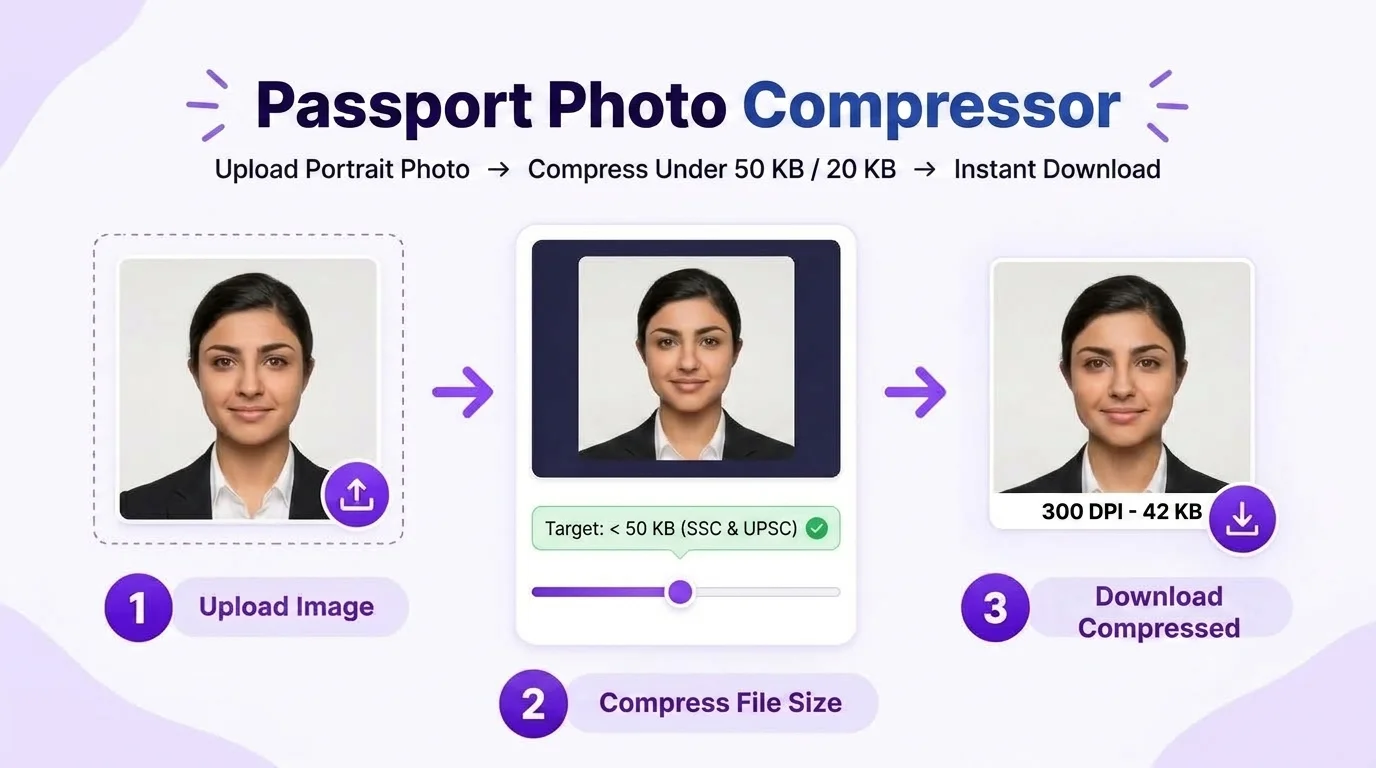
If your passport application gives a limit such as 20 KB or 50 KB, keep the required crop and pixel dimensions first, then reduce JPEG quality gradually until the file fits the stated range. PhotocopyWale can target a selected KB value, but the final image should still be checked for visible blockiness, smeared hair edges, or loss of eye detail. A small file is useful only when it still meets the application’s other requirements.
1. How Passport-Photo Upload File-Size Limits Work
| Limit pattern | Illustrative value | How to use it |
|---|---|---|
| Example: maximum file size | Maximum 50 KB | Use the pixel dimensions stated by that application |
| Example: allowed range | 20–50 KB | Stay above the minimum and below the maximum |
| Example: larger maximum | Maximum 100 KB | Do not over-compress merely because a smaller preset exists |
2. How to Compress Without Blurring Facial Details
JPEG compression reduces file size by encoding image detail more efficiently and discarding some information as quality is lowered. PhotocopyWale's compressor iterates toward the selected KB threshold in the browser. The best result is not simply the smallest file: keep the dimensions required by the application and inspect eyes, hair, facial edges and caption text for visible artifacts before using the export.
3. Step-by-Step In-Browser Compression Guide
- Open the passport-photo compressor and upload the highest-quality original you have.
- Confirm the crop, pixel dimensions and file format required by the current application before compression.
- Select the maximum or target KB value from the current application and run compression.
- Download the result, verify the actual file size and dimensions, then inspect visible quality at 100% zoom.
Frequently Asked Questions
What file-size limit should I use for a passport-photo upload?
File-size limits differ between application systems and can change. If your passport application specifies a maximum or a minimum–maximum range, use those exact values and verify the downloaded file before submission.
How do I reduce photo file size to under 50 KB without making it blurry?
Keep the required pixel dimensions first, then reduce JPEG quality toward the stated file-size limit. If the face becomes blocky or smeared, return to the original and use a less aggressive target when the application allows it.
What if my passport upload specifies both a minimum and maximum file size?
Keep the image inside both values. If a minimum is stated, do not over-compress below it; if only a maximum is stated, target slightly below the cap while preserving as much visible detail as practical.
Why does an upload form say my passport photo file is too large?
Phone and camera originals can be much larger than an application's upload limit. Read the current maximum or allowed range, keep any required pixel dimensions and format, then compress toward that limit instead of assuming one universal 10–50 KB rule.
Should I use PNG or JPEG for a passport-photo upload?
Do not assume every portal accepts the same format. Use JPEG only when the current passport application accepts or requests JPEG; otherwise export or convert to the format it specifies.
Why do two passport photos compress to different file sizes?
Different photos contain different amounts of texture, noise, color variation and fine detail. Even at the same pixel dimensions and quality setting, JPEG outputs can have different byte sizes, so verify each downloaded file.
 Author & Editorial Review
Authored and reviewed by Shrikant Yadav (shrikantyadav.com), Lead Developer at PhotocopyWale. File-size examples are illustrative; the current receiving application's instructions remain the source for its actual upload limit.
Compress Your Passport Photo to the Required KB
Use the passport-photo compressor to target the file-size limit specified by your current application, then verify the downloaded result before submission.
Open Passport Photo Studio