How to Print Passport Size Photos at Home on 4×6 & A4 Photo Paper
By Shrikant Yadav • Verified against Printer Driver Specifications • Updated 2026
To print passport-style photos at home without unintended scaling, download the print sheet, choose a paper/media setting that matches the paper in your printer, and select "100% Actual Size" when the sheet is designed for exact-size output. Print one test copy and measure it with a ruler. If your target is 35 × 45 mm, confirm those physical dimensions before printing the full sheet.
1. Critical Printer Driver Settings (Epson, Canon, HP)
| Setting | Required Value | Why It Matters |
|---|---|---|
| Scaling / Size | 100% or "Actual Size" | Avoids intentional page-fit scaling; verify with a ruler |
| Media Type | Photo Paper Glossy / RC Glossy | Adjusts printhead ink volume for rapid drying and sharp edges |
| Print Quality | High / Best | Engages full 300+ DPI photographic micro-droplet density |
| Color Correction | Driver ICM / Adobe RGB sRGB | Maintains natural skin tone without red or yellow color casts |
2. Paper GSM & Surface Selection
Photo paper in a weight supported by your printer can produce cleaner photographic detail than ordinary copier paper. Glossy, semi-gloss, or matte may each work differently with a given printer. If the passport authority specifies paper or finish, follow that instruction; otherwise select a media type your printer supports and test the result.
3. Step-by-Step Home Printing Workflow
- Open your generated PDF file in Adobe Acrobat Reader or your web browser.
- Press Ctrl + P to open the print dialog.
- Under Page Sizing & Handling, check the radio button for "Actual size".
- Click Properties / Preferences, set Paper Type to Photo Paper Glossy and Quality to High.
- Click Print, then let the sheet dry or cure according to the ink, paper and printer guidance before handling or cutting it.
Frequently Asked Questions
What printer settings are required to print passport photos at 100% exact scale?
When the sheet is designed for exact physical dimensions, use “Actual Size” or 100% scaling and avoid automatic fit/shrink settings unless your printer requires them. Measure a test print because driver behaviour and unprintable margins vary.
What is the best photo paper weight (GSM) for printing passport photos at home?
Choose photo paper that your printer’s manual says it can feed reliably. Medium-weight glossy or semi-gloss stocks are common choices, but the acceptable GSM range depends on the printer path, rollers, ink, and any paper requirement in the passport instructions.
How many passport photos fit on a single A4 photo sheet?
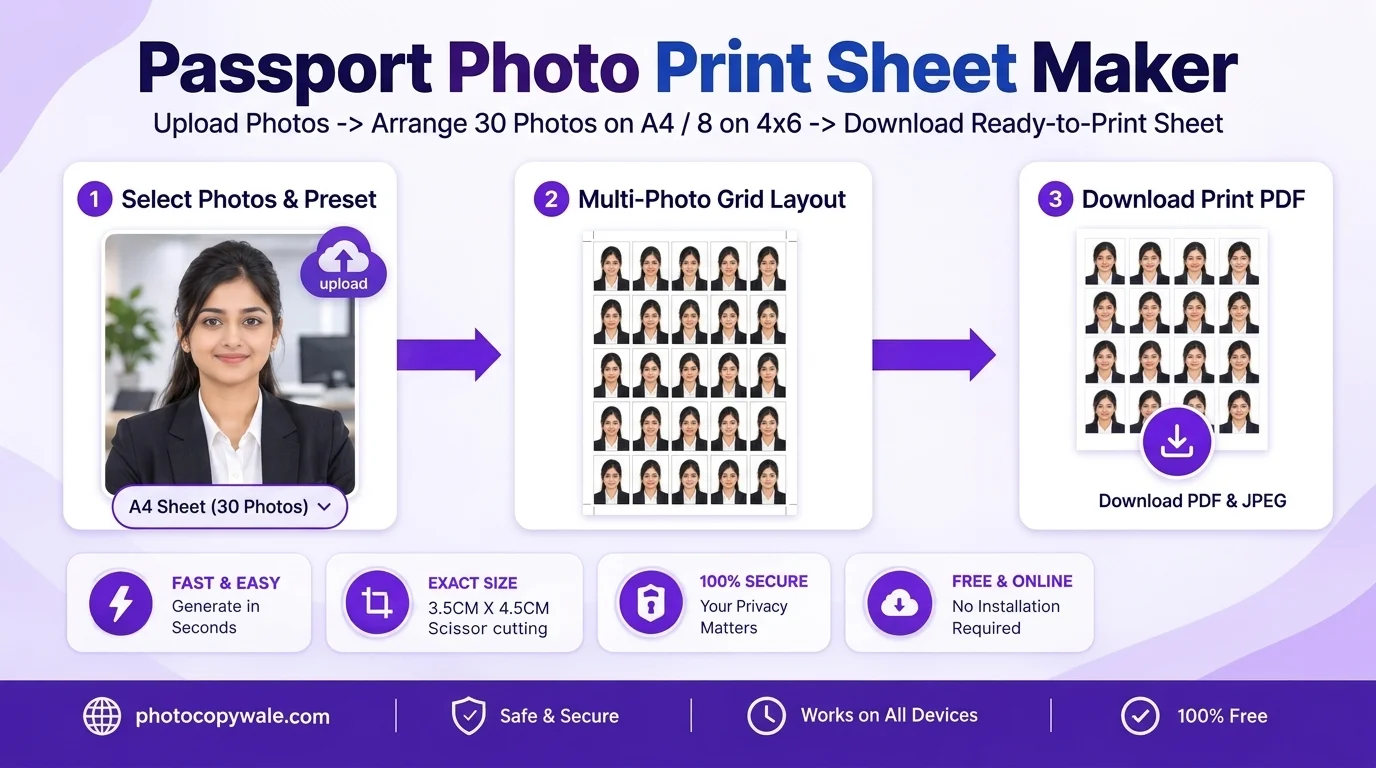
A standard A4 sheet (210 × 297 mm) comfortably holds 30 to 36 standard 35×45 mm photos arranged with scissor cutting lines.
How many passport photos fit on a 4×6 inch (4R) photo sheet?
A standard 4×6" photo paper sheet holds exactly 8 standard 35×45 mm passport photos arranged in a 4×2 grid.
How do I prevent dark or muddy photo prints on Canon, Epson, or HP printers?
In your printer driver preferences, set Media Type to "Photo Paper Glossy" and Print Quality to "High / Best". If the print comes out too dark, first confirm the correct media profile and print-quality setting. Make small brightness adjustments only after a test print so skin tone is not over-corrected.
How long should I let inkjet passport photos dry before cutting them?
Allow the printed sheet to rest flat for at least 2 to 3 minutes to allow the dye/pigment ink layer to cure fully before cutting with scissors or a paper trimmer.
 Author & Technical Review
Authored and verified by Shrikant Yadav (https://shrikantyadav.com/), Lead Developer at Photocopy Wale. Sourced from Epson and Canon Photo Printing Technical Guides.
Generate Your Print Sheet Now
Create an A4 or 4×6 sheet with 1:1 scale cutting guides in seconds.
Open Passport Photo Studio