Passport Photo Crop vs Resize: What Is the Difference?
Cropping and resizing solve different problems. Cropping changes which part of the source image remains in the frame; resizing changes the pixel dimensions of that resulting frame. Confusing the two can stretch a face, cut off important space, or produce the wrong aspect ratio.
Reviewed September 2026 • Technical guidance by PhotocopyWale • Authority-specific requirements should be verified with the current official source.
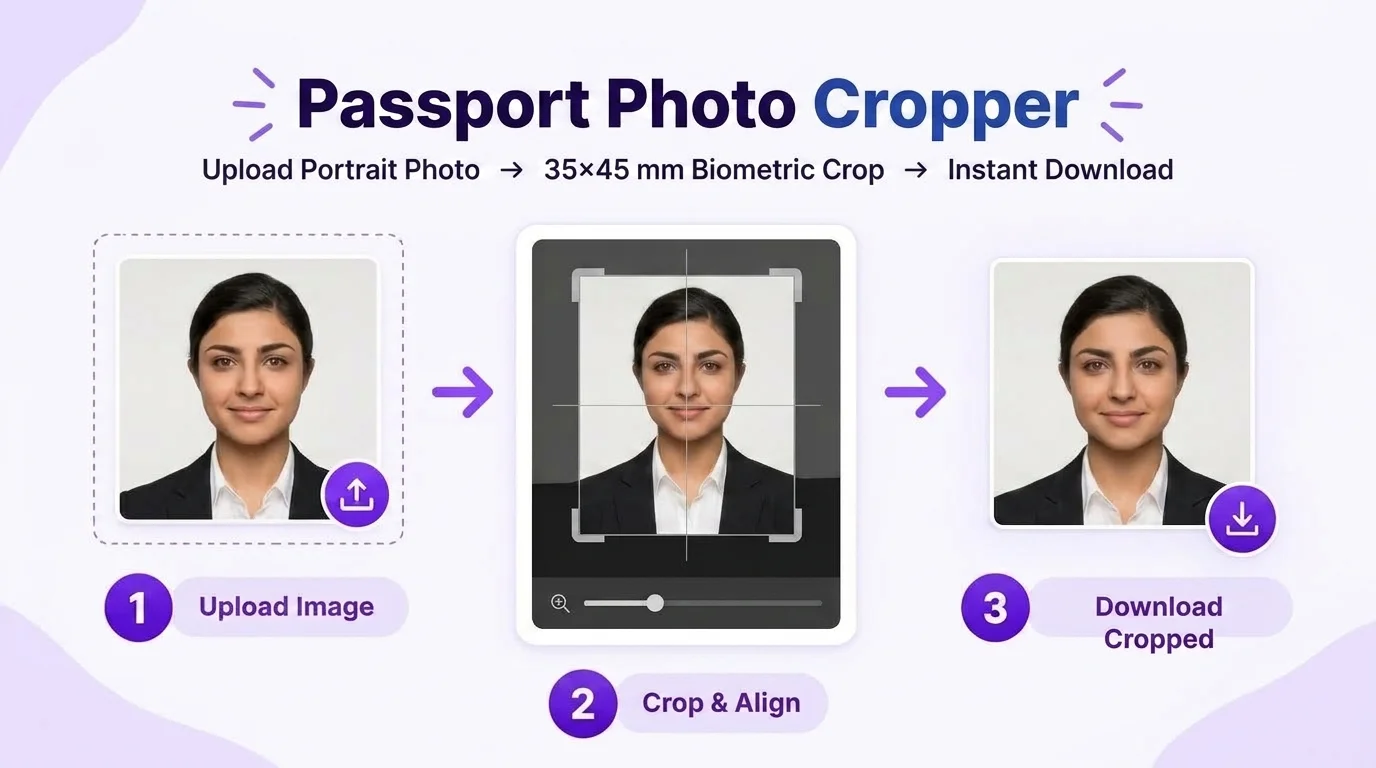
Crop first to establish composition and aspect ratio, then resize the cropped image to the required pixel dimensions. Never force a portrait into a new width and height by stretching it. If the requested output has a different aspect ratio from the source, remove excess area with a crop rather than distorting the face.
1. Understand crop, resize and compress as three separate operations
Cropping removes pixels around the edges of an image so the subject fits the intended frame. Resizing changes the width and height of the image in pixels. Compression reduces the number of bytes used to store the image, usually without changing its intended composition.
A passport-photo workflow may need all three, but in a logical order: choose the required frame, crop the portrait, resize to the requested digital dimensions if necessary, and then compress only if the application has a file-size limit.
| Operation | What changes | Typical purpose | Main risk |
|---|---|---|---|
| Crop | Visible area / composition | Fit the subject into the required frame | Cutting too tightly |
| Resize | Pixel width and height | Match digital dimensions | Stretching if aspect ratio is ignored |
| Compress | File size in KB/MB | Meet upload limit | Blur/blocking if pushed too far |
2. Why aspect ratio decides whether cropping is required
Aspect ratio is the relationship between width and height. A 35×45 frame has a 7:9 ratio. A square 2×2-inch frame has a 1:1 ratio. Those frames are not interchangeable, even if both are commonly associated with identity photos.
If your source photo is 3:4 and the required frame is 7:9, resizing directly to 7:9 will alter facial proportions unless the software preserves ratio and crops the overflow. That is why composition should be established before the final pixel resize.
- Check the target width and height before editing.
- Reduce the fraction or compare width ÷ height to understand the ratio.
- Use a fixed-ratio crop when the target ratio is known.
- Do not assume every passport authority uses the same ratio.
A ratio describes shape, not physical size. 35×45 mm and 350×450 px have the same 7:9 ratio but different measurement units.
3. A reliable crop-then-resize workflow
Start with the highest-quality source image. Select the target frame or enter its dimensions. Position the face naturally inside the crop without clipping hair, chin, or required surrounding space. Then apply the crop and resize the result to the requested digital dimensions.
When the application specifies only physical print dimensions, pixel dimensions depend on the chosen print resolution. When it specifies pixels directly, use those pixels rather than converting from a different physical-size assumption.
- 1. Read the current requirement.
- 2. Choose the target aspect ratio.
- 3. Crop the portrait without stretching.
- 4. Resize the cropped image if pixel dimensions are specified.
- 5. Compress only after dimensions are correct.
- 6. Inspect the exported file.
4. Worked examples
Example A: a 3000×4000 source portrait has a 3:4 ratio, while a 35×45 frame is 7:9. Crop a small amount of vertical or horizontal content as needed to achieve 7:9, then resize to the pixel dimensions required for the intended output.
Example B: a square photo is needed but the source is portrait. Do not squash the portrait into a square. Use a square crop, reposition the subject, and then resize the square result.
| Source | Target | Best action | Do not |
|---|---|---|---|
| 3:4 portrait | 7:9 frame | Crop to 7:9, then resize | Stretch to 7:9 |
| Portrait | 1:1 square | Square crop, then resize | Compress width only |
| Already correct ratio | Smaller pixels | Resize proportionally | Crop again without reason |
| Correct pixels, file too large | Same dimensions | Compress | Resize randomly |
5. Crop the frame without inventing a universal face percentage
Different authorities can specify different head size, eye position, or surrounding space. A cropper can help align a face, but one percentage should not be treated as universal for every passport or application.
Use visual guides as composition aids, then compare the result with the current official examples or measurements for the exact application. If no quantitative rule is supplied, avoid extreme close-ups and avoid leaving the face tiny inside a large empty frame.
Do not claim that a face occupying a specific percentage of the frame is accepted everywhere. Use the receiving authority’s current specification.
6. How cropping affects image quality
Cropping removes pixels. If the original image is already small and you crop heavily around the face, the remaining image may have too little resolution for a clean output. Upscaling afterward can make edges soft or artificial.
This is why taking the photo from a suitable distance at good resolution is better than using a tiny face from a wide group photo. A cropper cannot recover detail that was never captured.
- Prefer the original camera file.
- Avoid repeated crop-export-crop cycles.
- Check the remaining pixel dimensions after cropping.
- Retake the photo if the face becomes too low-resolution.
7. Troubleshooting common crop and resize mistakes
A stretched face usually means width and height were changed independently. An unexpectedly tight crop usually means the target ratio was applied without repositioning the subject. A blurry result often means the crop left too few pixels before resizing.
Fix the earliest step that caused the problem. Recompressing a stretched image will not restore facial proportions, and sharpening an over-cropped low-resolution image will not recreate genuine detail.
| Symptom | Likely cause | Fix |
|---|---|---|
| Face looks wide/tall | Aspect ratio stretched | Return to original and crop first |
| Hair/chin clipped | Crop too tight | Reposition or use a better source |
| Output blurry | Too few pixels after crop | Use higher-resolution source |
| Correct crop but upload too large | File size issue | Compress without changing composition |
Frequently asked questions
Should I crop or resize a passport photo first?
Crop first when the source composition or aspect ratio must change. Then resize the cropped result to the required pixel dimensions.
Is cropping the same as changing dimensions?
No. Cropping removes part of the image; resizing changes the pixel width and height of the remaining image.
Why does my face look stretched after resizing?
The width and height were likely forced into a different aspect ratio. Return to the original and crop to the target ratio instead of stretching.
Does compression change the crop?
Compression normally targets file size and quality. It should not be used as a substitute for fixing composition or aspect ratio.
Which passport-photo aspect ratio should I use?
Use the ratio implied by the current width and height specified by the receiving authority. Different applications can use different sizes and ratios.
PhotocopyWale explains photo-preparation techniques and technical calculations. The receiving passport or application authority decides its current size, background, file, capture, recency, and editing requirements. Check that authority's latest instructions before submission.