Bulk Passport Photo Compression Workflow for Multiple Photos
Bulk compression saves time only when every image in the batch belongs to the same technical requirement. Mixing different applications, dimensions, or KB limits in one job can create consistent-looking files that are consistently wrong for some recipients.
Reviewed September 2026 • Technical guidance by PhotocopyWale • Authority-specific requirements should be verified with the current official source.
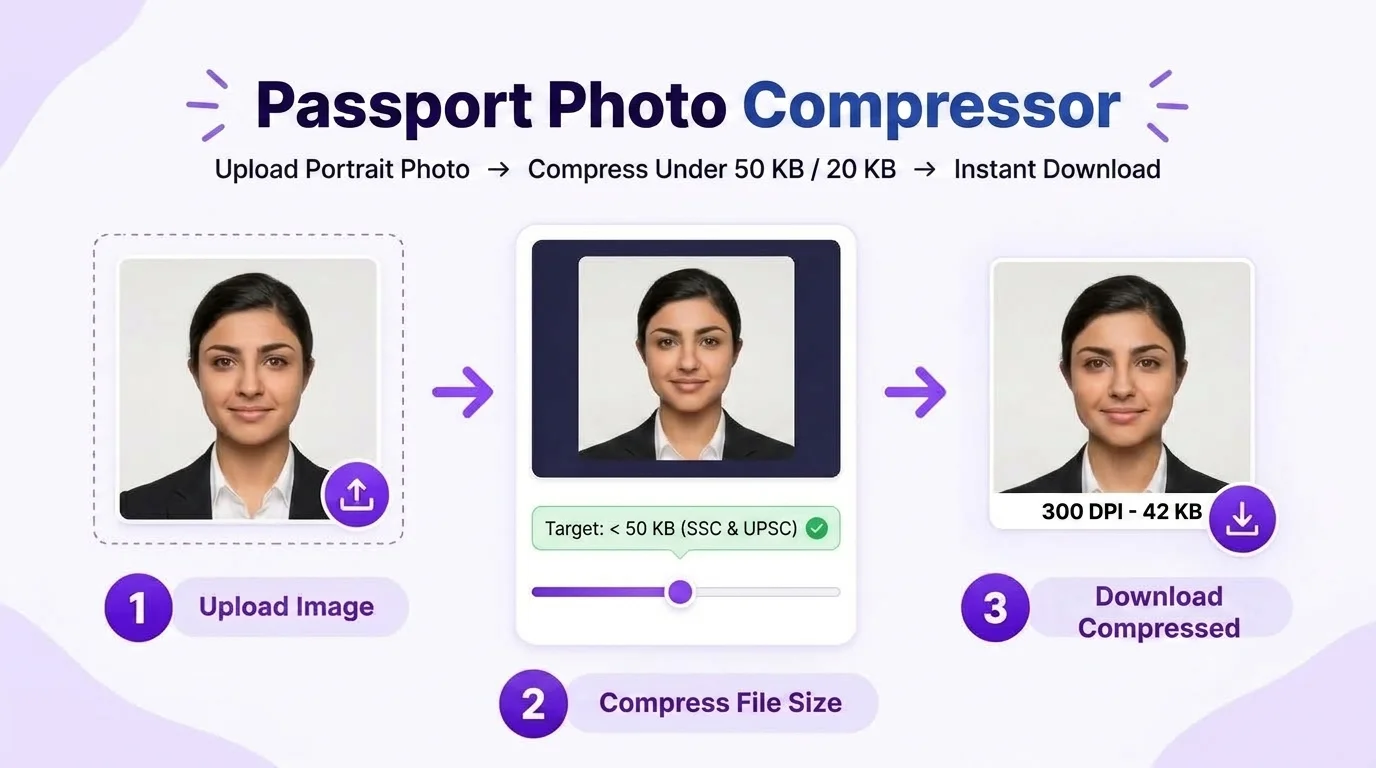
Group photos by the same required dimensions, format and file-size limit. Keep the originals, run one representative photo first, inspect its quality, then process the batch. After compression, spot-check every output and verify file size rather than assuming one quality setting will affect all images identically.
1. Group files by requirement before uploading
Batch tools apply a shared processing goal across multiple images. That is useful for a set of passport-style portraits prepared for the same upload specification, but risky when some files need different dimensions or file-size ranges.
Create separate folders or batches for each requirement. Give the batch a simple label such as “45x35-jpeg-max100kb” based on the actual specification you are following. This reduces accidental mixing later.
- Same target file-size rule.
- Same expected output format.
- Same dimension rule if resizing is involved.
- Same application/use case where possible.
- Originals stored separately.
2. Run one pilot photo before the full batch
Choose a representative image containing normal hair detail, clothing texture, and skin tone. Compress it to the target and inspect the actual downloaded file. If it is too soft, blocky, or far smaller than necessary, adjust the target/workflow before processing many files.
A pilot is especially important when the source photos come from different phones or photographers because noise and detail levels can vary significantly.
| Pilot check | What to verify |
|---|---|
| File size | Inside the required range or below the stated maximum |
| Dimensions | Match the requirement if dimensions are specified |
| Face detail | Eyes, hairline and edges remain clear |
| Format | Matches the current upload specification |
| Orientation | No accidental rotation |
3. Why every file will not compress identically
Two images with the same pixel dimensions can have different JPEG file sizes because one may contain more noise, texture, or color variation. A flat background and clean lighting usually compress more efficiently than a noisy low-light image.
Therefore a batch tool should be treated as a time-saving workflow, not as proof that every output has identical visual quality. Review the outputs individually.
- Noisy images may need more bytes to preserve detail.
- Already-compressed images can show artifacts sooner.
- Different source resolutions can affect the resize step.
- Background complexity changes compressibility.
4. Keep file names and originals organized
For repeated passport-photo work, file organization is part of quality control. Keep an untouched original folder and a separate output folder. Use names that identify the person or job without exposing more personal information than necessary.
If multiple people share similar names, add an internal job number rather than repeatedly overwriting files. Avoid storing sensitive portrait archives longer than your actual workflow requires.
For cyber-café or studio workflows, define a deletion routine for local files so old customer photos do not accumulate indefinitely.
5. Know the practical browser limits
Browser-based batch processing uses the memory and CPU of the current device. The practical number of images that can be handled smoothly depends on source image size, device memory, browser, and what other tabs are open.
Do not treat a marketing number as a guaranteed capacity unless the tool actually enforces and tests it. For very large batches, process smaller groups and confirm downloads before clearing the session.
| Situation | Practical response |
|---|---|
| Large phone photos | Use smaller batches |
| Older/low-memory device | Close other heavy tabs and reduce batch size |
| Browser becomes unresponsive | Stop and retry with fewer images |
| Mixed requirements | Split into separate batches |
6. Perform output QA before submission
After processing, verify every file has a successful result and open a sample from the beginning, middle and end of the batch. For high-stakes workflows, inspect every image rather than sampling only a few.
Automated file-size success does not verify crop, background, identity fidelity, or authority-specific rules. Those checks remain separate.
- Confirm no files failed silently.
- Check KB/MB size on downloaded files.
- Check dimensions and format.
- Inspect visible facial quality.
- Confirm the batch requirement is still the correct one.
7. A safer workflow for cyber cafés and photo shops
A shop can create a repeatable checklist without assuming all customers use the same requirement. Read the requirement shown by the customer’s current application, group only matching jobs, process, verify, download, and clear local working files when the job is complete.
This workflow is intentionally requirement-driven rather than exam- or authority-name-driven because portals and instructions can change.
Frequently asked questions
How many passport photos should I compress in one batch?
Use a batch size your device can process reliably. Practical capacity depends on source resolution, browser and device memory, so smaller groups are safer on low-memory devices.
Can every photo use the same 50 KB target?
Only if the exact application for those photos uses that target. Different applications can use different file-size limits.
Why are some files much smaller than others after compression?
Image content, noise and detail vary. The same target algorithm can produce different sizes and quality outcomes across different photos.
Should I delete originals after compression?
Keep originals at least until the job is verified. In commercial workflows, use a privacy-conscious retention/deletion routine appropriate to your responsibilities.
Does successful compression mean the photo is accepted?
No. Compression verifies only a technical output goal. Crop, dimensions, background, capture method and other requirements must still be checked separately.
PhotocopyWale explains photo-preparation techniques and technical calculations. The receiving passport or application authority decides its current size, background, file, capture, recency, and editing requirements. Check that authority's latest instructions before submission.