How to Fix a Blurry Passport Photo After Compression
A passport photo can look blurry after compression when the target file size is too aggressive for the image, the source was already soft, the dimensions were reduced too far, or the file has been repeatedly re-saved. The correct fix depends on which stage introduced the quality loss.
Reviewed September 2026 • Technical guidance by PhotocopyWale • Authority-specific requirements should be verified with the current official source.
Go back to the highest-quality original, establish the correct crop and pixel dimensions, then compress once toward the required file-size limit. Compare the result at 100% zoom and at its final display size. If the eyes, hairline, or facial edges smear, use a less aggressive target or a better source rather than sharpening heavily.
1. Why a passport photo becomes blurry
JPEG compression works by representing image detail more efficiently and discarding some information as quality is reduced. At moderate settings, the difference can be difficult to see. At very small file sizes, fine facial detail can smear and block boundaries may become visible.
Blur can also come from the camera itself. Missed focus, motion, strong digital zoom, low-light noise reduction, and screenshots may all create softness before compression begins. Compression cannot restore those missing details.
- Very low target KB for a relatively large image.
- Repeated JPEG exports from an already compressed copy.
- Resizing to too few pixels before compression.
- Low-light or motion-blurred source photography.
- Aggressive smoothing or enhancement before export.
2. Diagnose whether the problem is compression or the source
Compare the original and compressed files side by side at the same apparent size. If the original is sharp but the result has blocky hair, mushy eyes, or ringing around edges, compression likely introduced the damage. If both are soft, the source is the limiting factor.
Also compare pixel dimensions. A file that went from 3000×4000 to 200×267 pixels may look soft because of resizing rather than byte compression alone.
| Observation | Likely cause | Next action |
|---|---|---|
| Original sharp, output blocky | Compression too aggressive | Raise target KB / quality |
| Original and output both soft | Source capture issue | Use a sharper original or retake |
| Output much smaller in pixels | Resize caused detail loss | Use required dimensions, not arbitrary small size |
| Halo around edges | Oversharpening | Return to a cleaner export |
3. Use the correct order: crop, resize, then compress
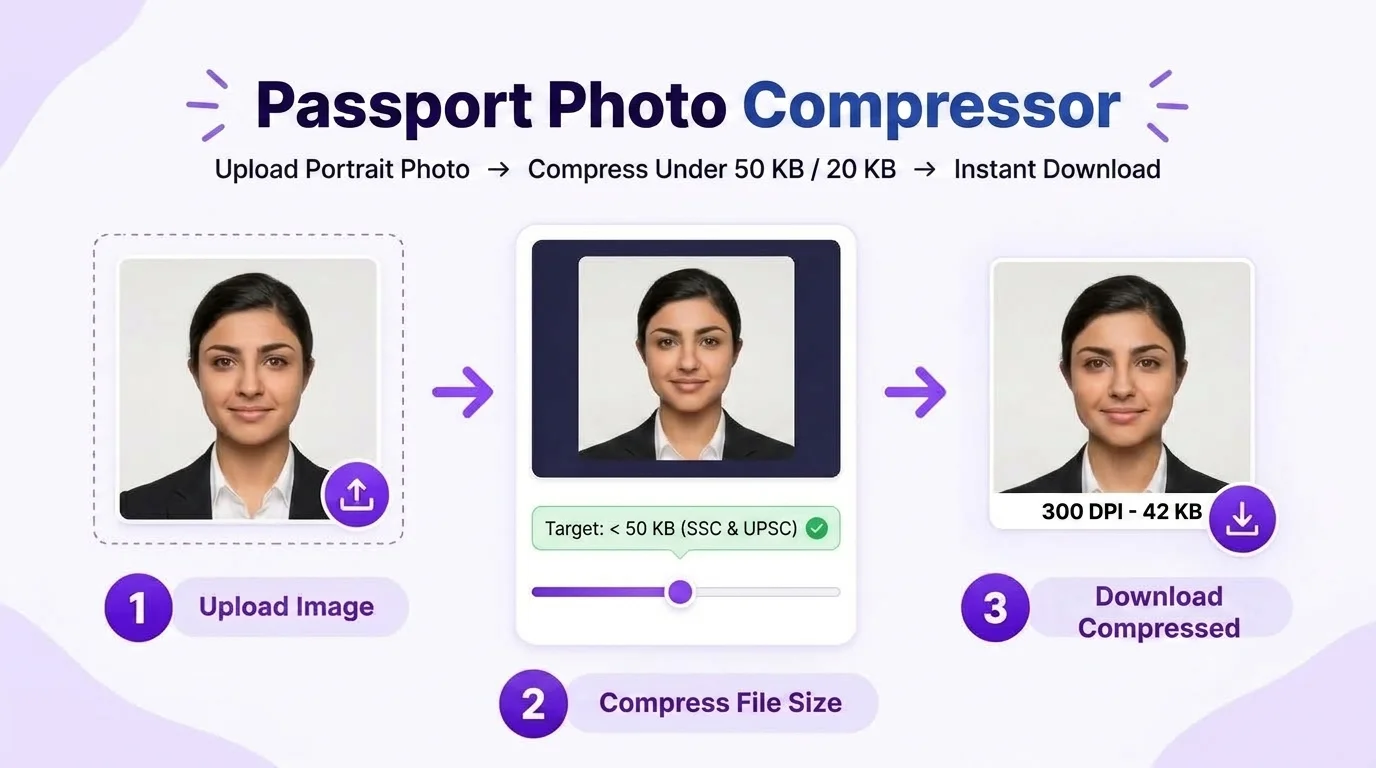
A reliable workflow minimizes repeated encoding. Start with the original. Crop it to the intended composition, resize only if the application specifies pixel dimensions, and then compress toward the file-size limit. Export the final JPEG once when possible.
If you compress a 5 MB source to 20 KB, edit that 20 KB JPEG again, and compress it a second time, each generation can discard additional information. Keeping an untouched master avoids that degradation.
- Work from the original camera file.
- Crop before final compression.
- Resize only to dimensions you actually need.
- Compress once toward the required limit.
- Keep the master file separately.
Do not use an arbitrary 20 KB or 50 KB target unless the receiving application actually specifies that range.
4. Choose a realistic target KB
The smaller the required file, the harder it is to preserve detailed texture. A small portrait with simple background can compress more efficiently than a noisy high-resolution image. Therefore no single quality percentage guarantees the same KB result for every photo.
Target-KB tools often iterate through quality levels or resize strategies. The important output check is not only whether the number is under the limit, but whether the final face remains clear enough for the intended use.
| Goal | Good practice | Risky shortcut |
|---|---|---|
| Meet max file size | Aim near but below the stated maximum | Make file dramatically smaller than required |
| Keep clarity | Use correct dimensions and moderate compression | Heavy sharpening after severe compression |
| Avoid re-encoding | Export once from original workflow | Repeatedly saving JPEG copies |
| Reduce noisy file | Use well-lit source | Compress noisy low-light image aggressively |
6. Verify the final downloaded file
Check the actual downloaded file rather than only the preview. Confirm its byte size, pixel dimensions, format, orientation, and visible quality. Open it in a normal image viewer and inspect the face at 100% zoom.
Then compare the technical output with the current application requirement. A technically small file is not automatically suitable if it has the wrong dimensions, wrong format, wrong background, or unacceptable visual quality.
- File size is inside the required range.
- Pixel dimensions match the stated requirement if one is provided.
- Eyes, hairline and facial contours remain clear.
- No obvious blockiness, color banding or halos.
- The photo still represents the person naturally.
7. Special considerations on phones
Messaging apps and social platforms often compress images automatically. If you received the photo through a chat app, compare it with the original camera version before using it for a strict upload workflow.
On mobile, also avoid taking a screenshot of an existing photo as a shortcut. Screenshots can change dimensions, color handling, and compression. Upload the original image file whenever possible.
If someone sends you a passport photo for processing, ask for the original file rather than a social-media preview or screenshot.
Frequently asked questions
Why is my 20 KB passport photo blurry?
A 20 KB target can be demanding depending on the image dimensions and source complexity. Use that size only if required, start from the original, and inspect facial detail after compression.
Can I sharpen a compressed passport photo?
A small amount may improve edge perception, but sharpening cannot recover detail lost through severe compression or motion blur.
Should I reduce dimensions to make the file smaller?
Only if the application permits or specifies smaller dimensions. Do not change required pixel dimensions merely to hit a KB target.
Why does the same quality setting create different file sizes?
Different photos contain different amounts of detail, noise and color variation. JPEG file size depends on image content as well as dimensions and quality.
Is the smallest possible file better?
No. The goal is to satisfy the required maximum or range while preserving useful detail, not to make the file unnecessarily tiny.
PhotocopyWale explains photo-preparation techniques and technical calculations. The receiving passport or application authority decides its current size, background, file, capture, recency, and editing requirements. Check that authority's latest instructions before submission.