How to Fix a Dark Passport Photo Without Over-Editing It
A passport-style portrait can look too dark because of weak room light, strong backlighting, underexposure, or a bright background that tricks the camera. The safest correction is usually modest exposure and tonal adjustment while keeping facial features, skin texture, and identity unchanged.
Reviewed September 2026 • Technical guidance by PhotocopyWale • Authority-specific requirements should be verified with the current official source.
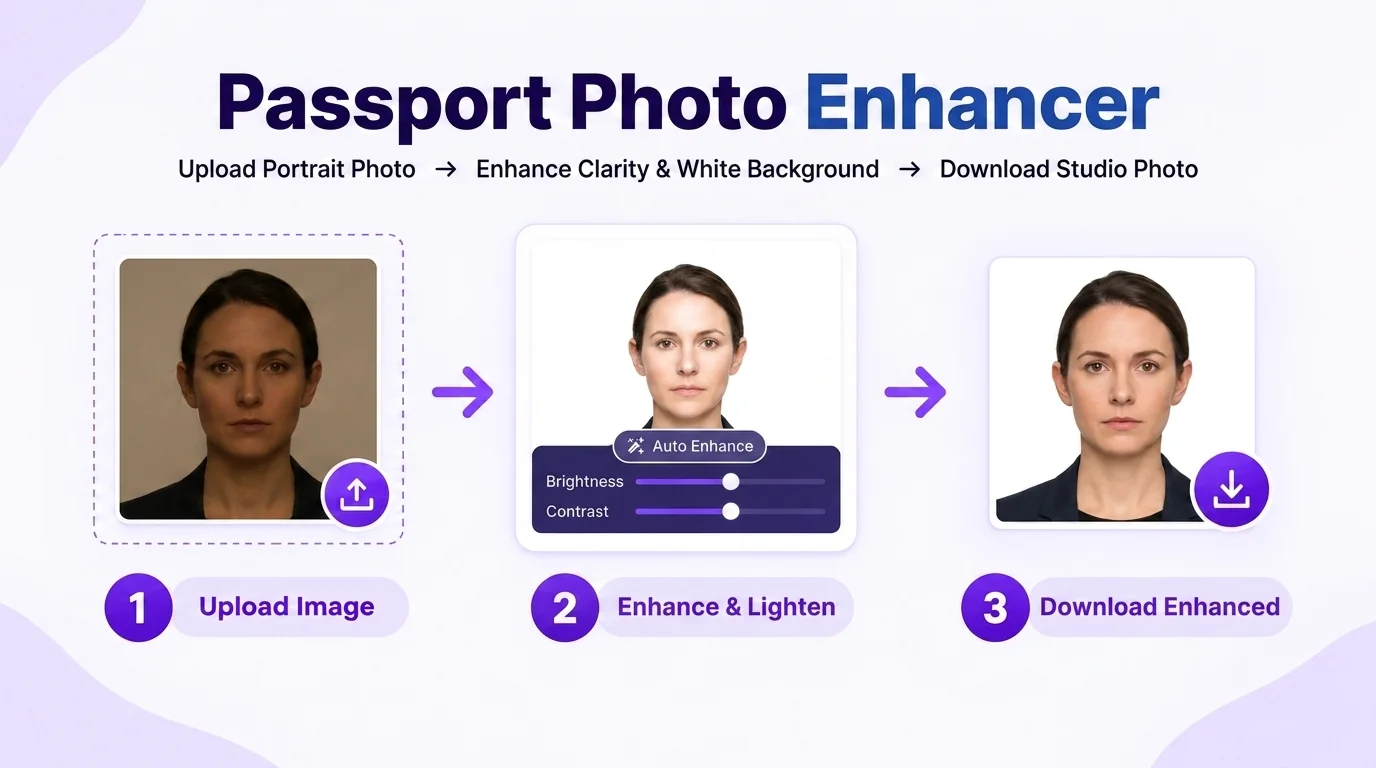
Start with the original image, raise exposure or brightness gradually, recover shadow detail only as needed, and then check the face at 100% zoom. Stop before skin becomes washed out or highlights lose detail. If the photo was captured in extremely poor light, retaking it is often better than aggressive editing.
1. Find out why the passport photo looks dark
A dark image is not one single problem. The whole frame may be underexposed, the face may be in shadow while the background is bright, or only one side of the face may be poorly lit. Identifying the cause prevents unnecessary edits.
Open the original photo rather than a screenshot or repeatedly compressed copy. Check the eyes, hair, cheeks, jawline, and clothing separately. If detail is visible but dim, tonal correction can help. If detail is already clipped to black, software cannot recreate trustworthy detail that was never captured.
- Compare the face with the background: a bright window behind the person can make the camera underexpose the face.
- Check whether both sides of the face are visible without strong shadow bands.
- Inspect the eyes and hair at 100% zoom; these areas reveal lost detail quickly.
- Prefer the highest-resolution original from the phone or camera.
If the face is almost black or motion-blurred, retake the photo in better light instead of pushing enhancement sliders to extremes.
2. Use a conservative adjustment order
Editing order matters because large changes early in the process can make later corrections harder to judge. Start with exposure or brightness, then refine contrast, and only then consider small sharpness changes.
A practical workflow is to make one small adjustment, compare before and after, and continue only if the photo becomes easier to read without looking artificial. Avoid stacking many strong filters because each step can amplify halos, noise, and color shifts.
- Raise exposure/brightness just enough to make facial detail clear.
- Reduce excessive contrast if shadows are crushed.
- Use highlights carefully so the forehead and cheeks do not become blank white patches.
- Apply sharpening lightly and only after size/compression decisions.
Keep an untouched original file. It gives you a reference if the edited version starts to look unnatural.
3. Worked example: correcting an underexposed phone portrait
Imagine a phone portrait where the face is readable but one stop too dark. A useful correction might be a modest exposure increase, a small shadow lift, and no skin smoothing. After adjustment, compare the eyebrows, eyelashes, hairline, nostrils, and lip edges with the original. They should be clearer, not redrawn.
If brightening reveals colored noise in the shadows, aggressive sharpening can make that noise worse. In that case, a better-lit source photo may produce a cleaner passport-style result than further editing.
| Check | Before correction | Good result | Too far |
|---|---|---|---|
| Face | Dim but visible | Clear natural detail | Washed out or plastic |
| Skin | Shadowed | Natural tone retained | Texture erased |
| Hair | Dark detail compressed | Strands/edge still natural | Halo or oversharpened |
| Background | May be bright | Prepared separately as required | Used to hide bad exposure |
4. Handle uneven facial shadows carefully
Uneven light can create a dark cheek, eye socket, or jawline even when overall exposure is acceptable. Raising global brightness may overexpose the well-lit side before the shadowed side becomes natural.
When the source has strong directional shadows, a retake with softer frontal light is usually more reliable. Stand facing a large window or diffuse light source, keep the background behind you rather than behind the camera, and avoid direct overhead bulbs that create deep eye shadows.
- Move away from direct sunlight and use open shade or diffused window light.
- Keep the camera close to eye level.
- Avoid mixing very warm and very cool light sources.
- Do not paint over shadows with generated skin or cloned facial detail.
If correcting a shadow requires inventing facial texture, the source image is not suitable for conservative passport-photo enhancement.
6. Keep identity-bearing features unchanged
Passport and application photos are identity images. Brightness and tonal corrections should make the captured face easier to see, not make the person look different. Face reshaping, eye enlargement, jaw changes, synthetic skin, age changes, hairstyle replacement, or generated facial detail go beyond ordinary exposure correction.
If the receiving authority restricts retouching or requires a live capture, follow that current instruction even if an editing tool can technically make a change.
- Keep facial geometry unchanged.
- Keep moles, scars, and other natural identifying details unless the authority says otherwise.
- Avoid beauty filters and smoothing presets.
- Use the authority’s current capture/editing instructions as the final rule.
7. Verify the enhanced output before using it
After adjustment, export once and inspect the actual downloaded file. Check its pixel dimensions, file size, format, and visible quality. Then compare those technical properties with the application you are preparing.
Enhancement is only one part of preparation. A clear portrait can still be unsuitable if the crop, dimensions, background, file size, or capture method does not match the receiving authority’s current requirement.
- View at 100% zoom for halos and blockiness.
- Compare with the original to ensure the person still looks the same.
- Confirm the required dimensions and file-size range separately.
- Use the compressor after enhancement only if a smaller file is required.
Frequently asked questions
Can I brighten a dark passport photo?
Yes, modest exposure or brightness correction can improve a genuinely underexposed portrait. Keep the person’s identity unchanged and verify the receiving authority’s current editing rules.
Should I use AI to relight a passport photo?
Generative relighting can alter facial detail or create pixels that were not captured. For identity photos, conservative non-generative tonal adjustment or a better retake is safer.
Why does my photo become noisy when I brighten it?
Low-light images contain less clean signal in shadow areas. Brightening can reveal sensor noise that was already present, especially in phone photos captured at high ISO.
Can sharpening fix a blurry passport photo?
Only slight softness may improve with modest sharpening. Motion blur or missed focus is better solved by using a sharper original or retaking the photo.
What should I do after enhancement?
Check the crop, required dimensions, background, file size, format and the current application instructions before export or submission.
PhotocopyWale explains photo-preparation techniques and technical calculations. The receiving passport or application authority decides its current size, background, file, capture, recency, and editing requirements. Check that authority's latest instructions before submission.