
Passport Photo Print Scaling: How to Keep the Correct Physical Size
A print sheet can be mathematically correct and still come out at the wrong physical size if the printer driver scales the page. “Fit to page”, borderless enlargement, browser print margins, and photo-lab cropping can all change the final millimetre dimensions.
Reviewed September 2026 • Technical guidance by PhotocopyWale • Authority-specific requirements should be verified with the current official source.
Export the sheet at the intended paper size, print a single test page with scaling set to 100% or Actual Size where your print system offers that option, then measure one photo with a ruler. If the measured width or height is wrong, fix the print scaling before producing the full batch.
1. Why a correct file can print at the wrong size
Print software often tries to help by expanding or shrinking a page to fit the printer’s printable region. That behavior is useful for ordinary documents, but it can be a problem when the size of each photo matters.
Borderless photo modes can also enlarge the image slightly so no white edge appears on the paper. The amount of enlargement depends on the printer and driver, so it should not be assumed to preserve exact photo dimensions.
- Fit to Page can scale the entire sheet.
- Shrink oversized pages can reduce every photo.
- Borderless modes may enlarge/crop edges.
- Browser headers and margins can change printable geometry.
- Photo labs may crop to fill the chosen paper ratio.
2. Use actual-size settings deliberately
Look for terms such as Actual Size, 100%, Scale 100, or No Scaling in the print dialog. Different operating systems and printer drivers use different labels. The goal is to prevent automatic enlargement or reduction of the exported sheet.
Make sure the selected printer paper size matches the exported sheet. Printing an A4 PDF while the driver is set to Letter, for example, can trigger scaling even when the preview looks reasonable.
- Match document paper size to loaded paper.
- Select 100%/Actual Size when available.
- Disable Fit/Shrink/Fill options when exact scale matters.
- Check orientation.
- Run one inexpensive test before the full print.
Printer interfaces vary. Treat these as settings to look for, not as universal button names.
3. Measure the test print instead of trusting the screen preview
Screens display pixels, not physical millimetres. The most reliable check is a ruler or caliper on the printed output. Measure both width and height of one photo and compare with the dimension you intended to print.
If both dimensions are off by the same percentage, page scaling is likely. If only one dimension is wrong, investigate aspect-ratio distortion or a layout/export problem.
| Result | Likely cause | Next check |
|---|---|---|
| Width and height both small | Page was scaled down | Print dialog scale / paper mismatch |
| Width and height both large | Borderless enlargement or scale >100% | Borderless/zoom setting |
| Only one dimension wrong | Aspect-ratio distortion | Source/layout sizing |
| Some edges clipped | Printer non-printable area | Margins / borderless mode |
4. Simple scaling math for troubleshooting
If a 35 mm intended width measures 34 mm, the printed scale is about 34 ÷ 35 = 97.1%. If a 45 mm intended height measures 43.7 mm, that is about 97.1% as well. Similar percentages in both directions are a strong sign that the whole page was scaled.
Do not “fix” a printer scaling problem by changing the passport-photo dimensions inside the editor unless you fully understand the cause. Correcting the print setting keeps the digital photo dimensions accurate for other outputs.
| Intended | Measured | Approx. print scale |
|---|---|---|
| 35 mm | 35 mm | 100% |
| 35 mm | 34 mm | 97.1% |
| 45 mm | 43.7 mm | 97.1% |
| 45 mm | 46 mm | 102.2% |
5. A4 capacity and margins are separate from scaling
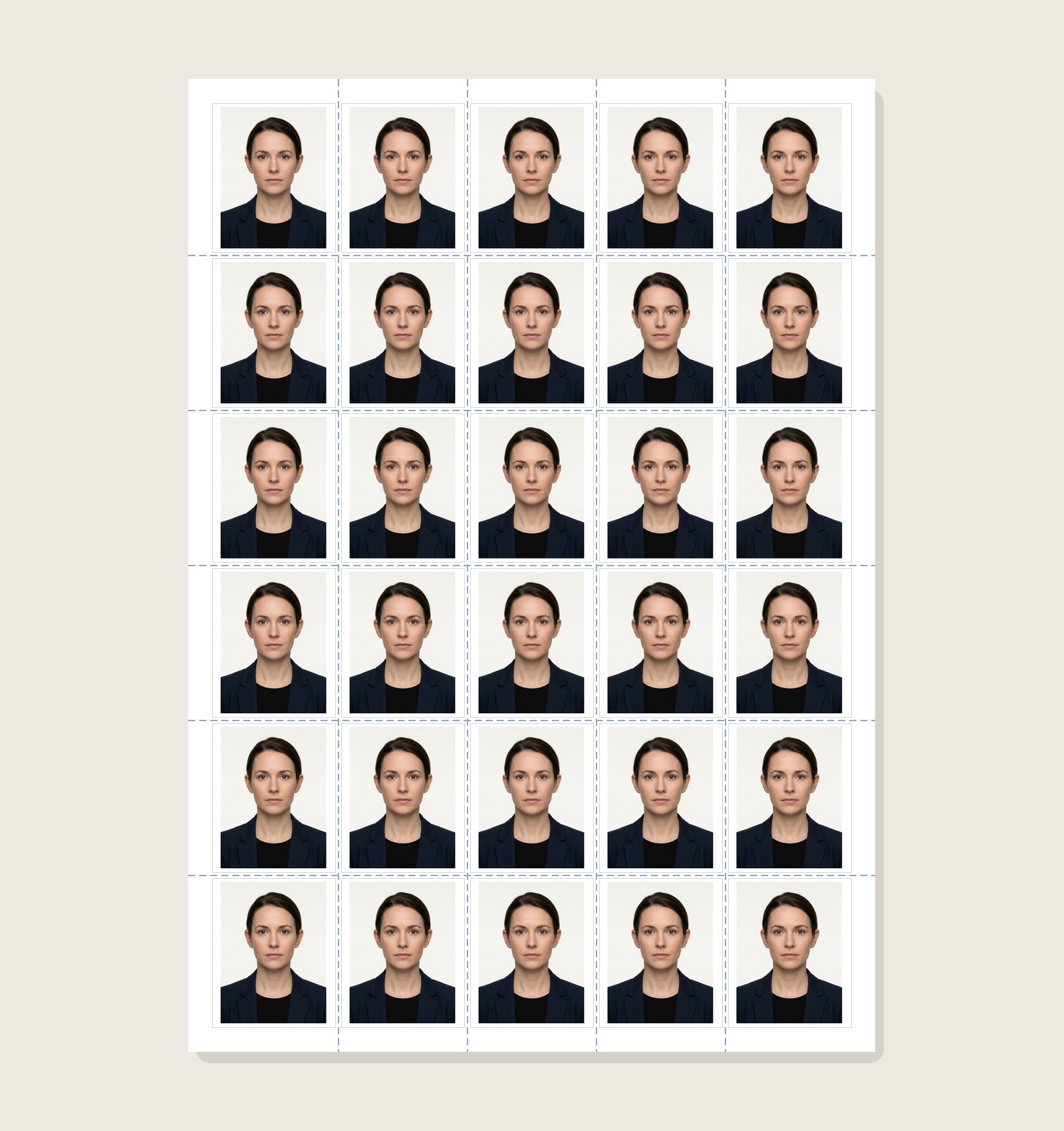
A4 measures 210×297 mm. A five-column grid of 35 mm-wide photos uses 175 mm of horizontal photo width before gaps and outer margins. A six-row grid of 45 mm-high photos uses 270 mm vertically before gaps and margins. That can leave room for a 5×6 layout depending on the gap and margin choices.
A six-column grid of exact 35 mm photos uses the full 210 mm A4 width before any horizontal gap or margin. Therefore a “36-slot” 6×6 layout should not be described as six exact 35 mm-wide photos plus normal margins on standard A4. Slot-count presets and exact physical-size layouts are different claims.
| Example | Photo footprint only | What remains |
|---|---|---|
| 5×6 of 35×45 mm | 175×270 mm | 35 mm horizontal and 27 mm vertical total before gaps/margins |
| 6×6 of 35×45 mm | 210×270 mm | 0 mm horizontal before gaps/margins |
| A4 paper | 210×297 mm | Printer printable area may be smaller |
6. Printing through a photo lab or kiosk
When sending a 4×6 or other sheet to a lab, choose options that preserve the whole file rather than automatically filling and cropping, if the service provides that choice. Lab terminology varies, so preview the crop indicators carefully.
If exact physical dimensions are critical, ask the lab whether the uploaded image is printed edge-to-edge, cropped to fill, or fit within the paper. A small test order can confirm the actual scaling behavior.
7. Final print verification checklist
Before cutting a full sheet, inspect the page for clipping, banding, unintended borders, and color shifts, then measure one photo. If the test is correct, use the same driver settings for the remaining copies.
Keep print scaling separate from authority requirements. The fact that a photo prints at the intended physical dimensions does not by itself confirm that those dimensions are the ones required by the receiving authority.
- Paper size in driver matches exported sheet.
- Scaling is set to 100%/Actual Size when available.
- One printed photo measures as intended.
- No edge clipping from non-printable margins.
- Photo requirement was verified independently.
Frequently asked questions
Should I use Fit to Page for passport photos?
Usually not when exact physical dimensions matter, because Fit to Page can scale the entire sheet. Use Actual Size or 100% where available and verify with a test print.
Why is my 35×45 mm photo smaller after printing?
The page may have been scaled to fit the printer’s printable area or a different paper size. Measure both dimensions and inspect the print-scale settings.
Does borderless printing preserve exact size?
Not necessarily. Some borderless modes enlarge the image slightly to cover the paper edges. Check your printer driver and measure a test output.
Can I trust the browser preview for millimetres?
No. A screen preview is useful for arrangement, but the physical print should be measured when exact size matters.
How many 35×45 mm photos fit on A4?
It depends on grid, gaps, margins and printable area. Five columns by six rows uses a 175×270 mm photo footprint before spacing; other layouts need their own geometry check.
PhotocopyWale explains photo-preparation techniques and technical calculations. The receiving passport or application authority decides its current size, background, file, capture, recency, and editing requirements. Check that authority's latest instructions before submission.